Happ for Android
Works on Android, iOS, macOS (M1–M5), tvOS, Windows, Linux
Download the app
Happ is a free app. The easiest way to install it is from Google Play:
Download the APK file directly and open it on your phone — Android will offer to install the app:
When installing from an APK, Android may ask for permission to "Install from unknown sources" — allow it.
Step 1. Install the app
- Open Google Play
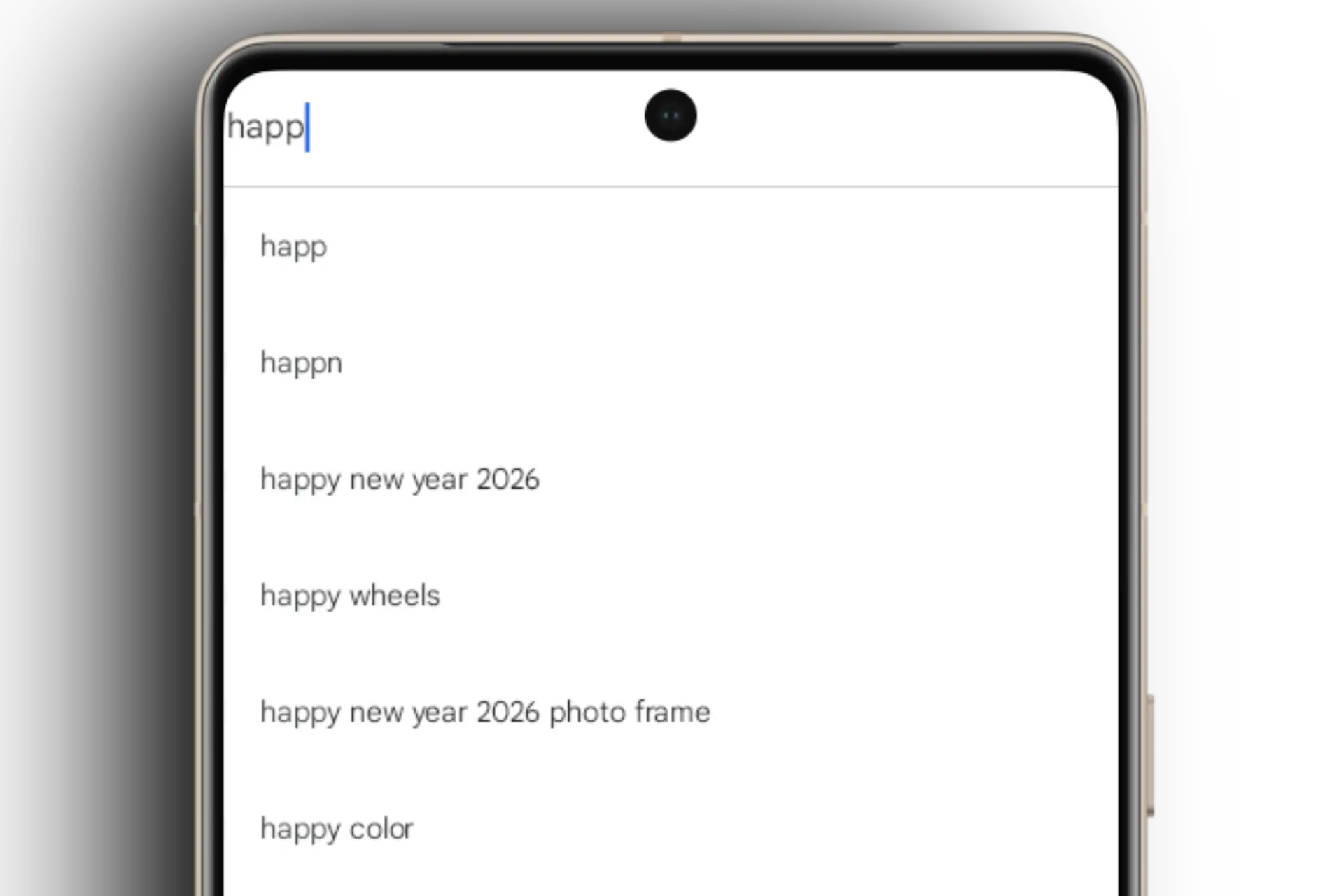
- Search for "Happ"
- Tap "Install" and wait for the install to finish
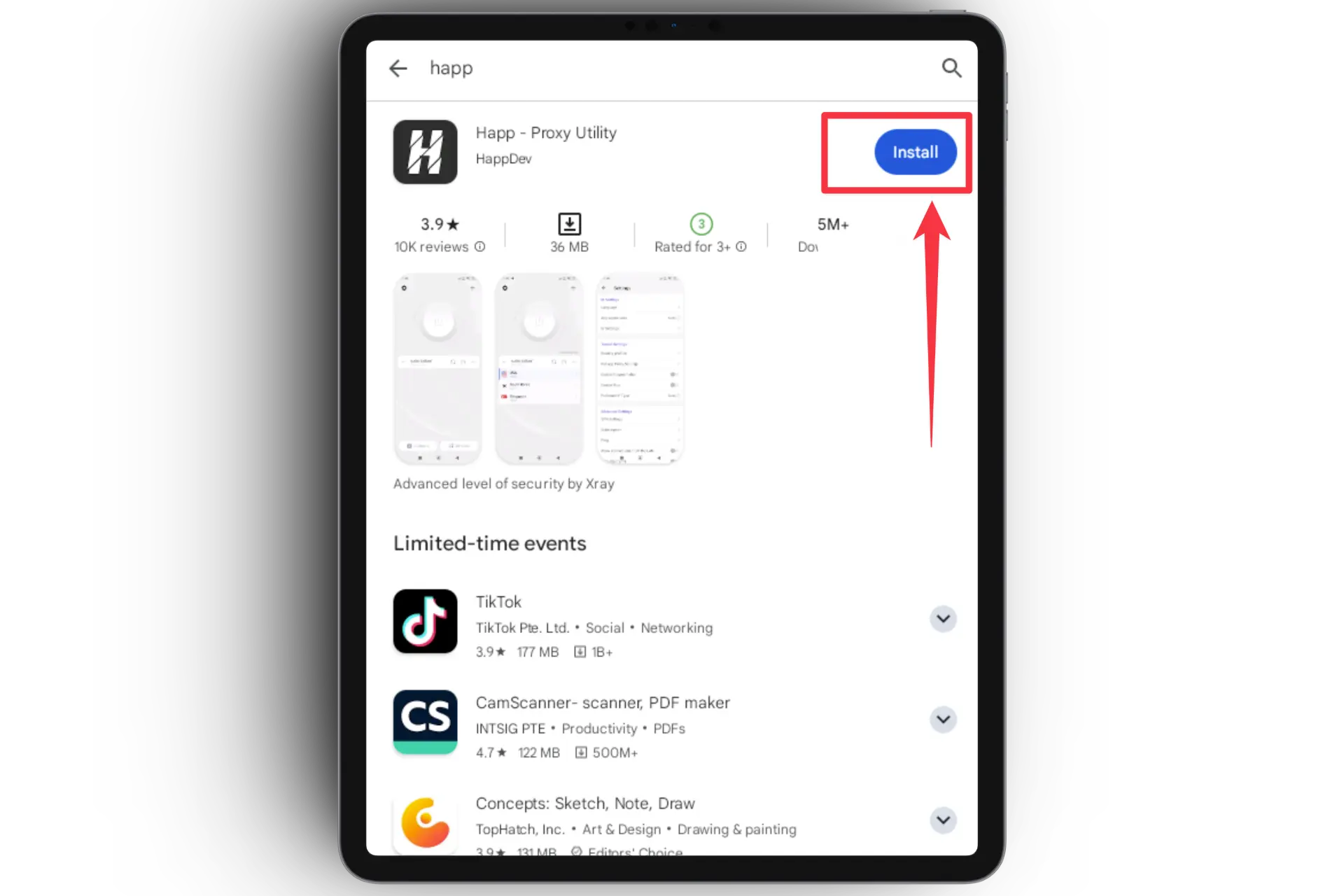
Result: the Happ icon has appeared in your app list.
Step 2. Copy your activation link
The activation link is your personal subscription. Get it from our Telegram bot:
- Open the Telegram bot
- Tap 📲 Main menu
- Choose 📖 Profile
- Tap "Activation link:" — it will be copied automatically
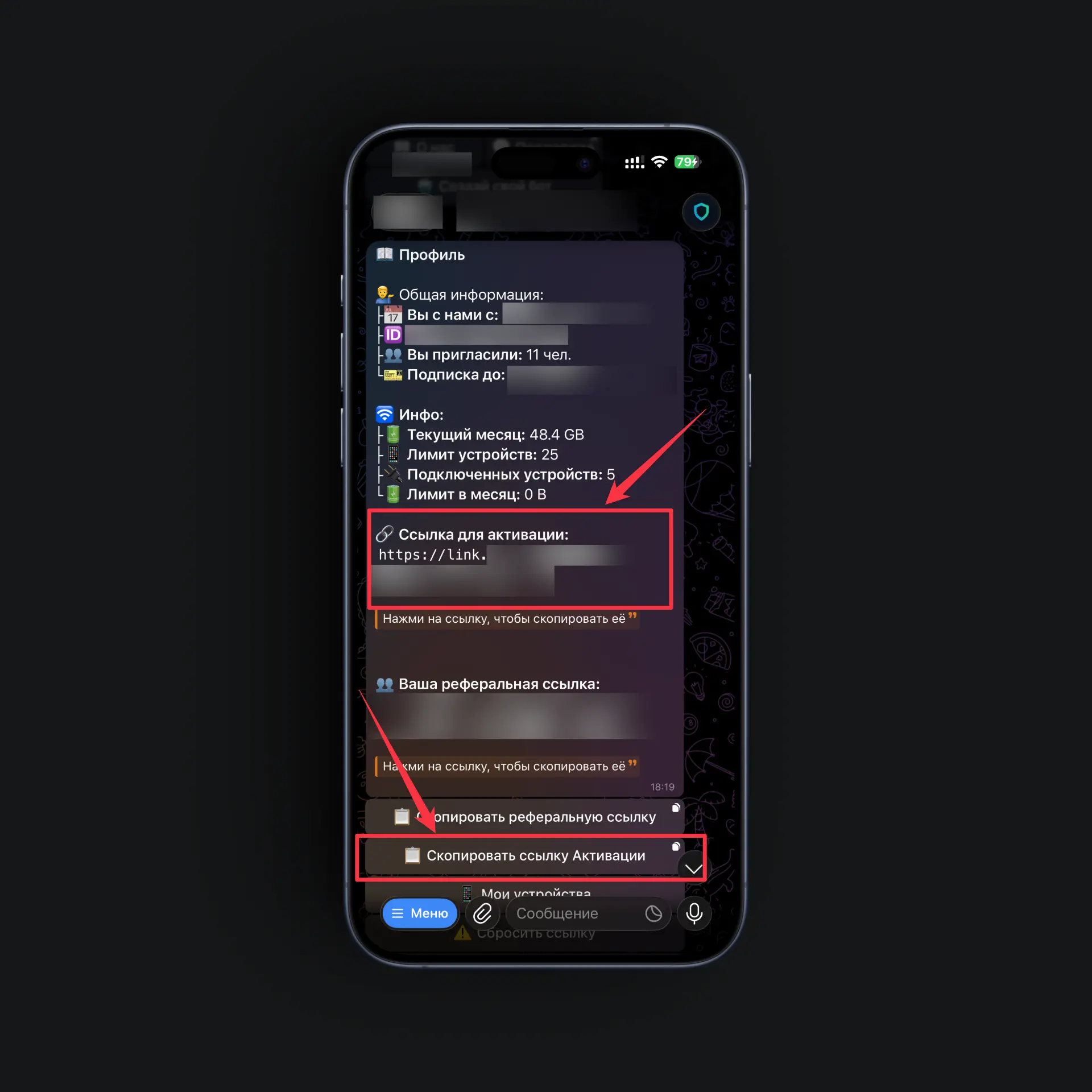
Result: the link is on your clipboard — we'll hand it to the app in the next step.
Step 3. Add the subscription
The Happ interface on Android looks the same — there's no difference in the steps.
-
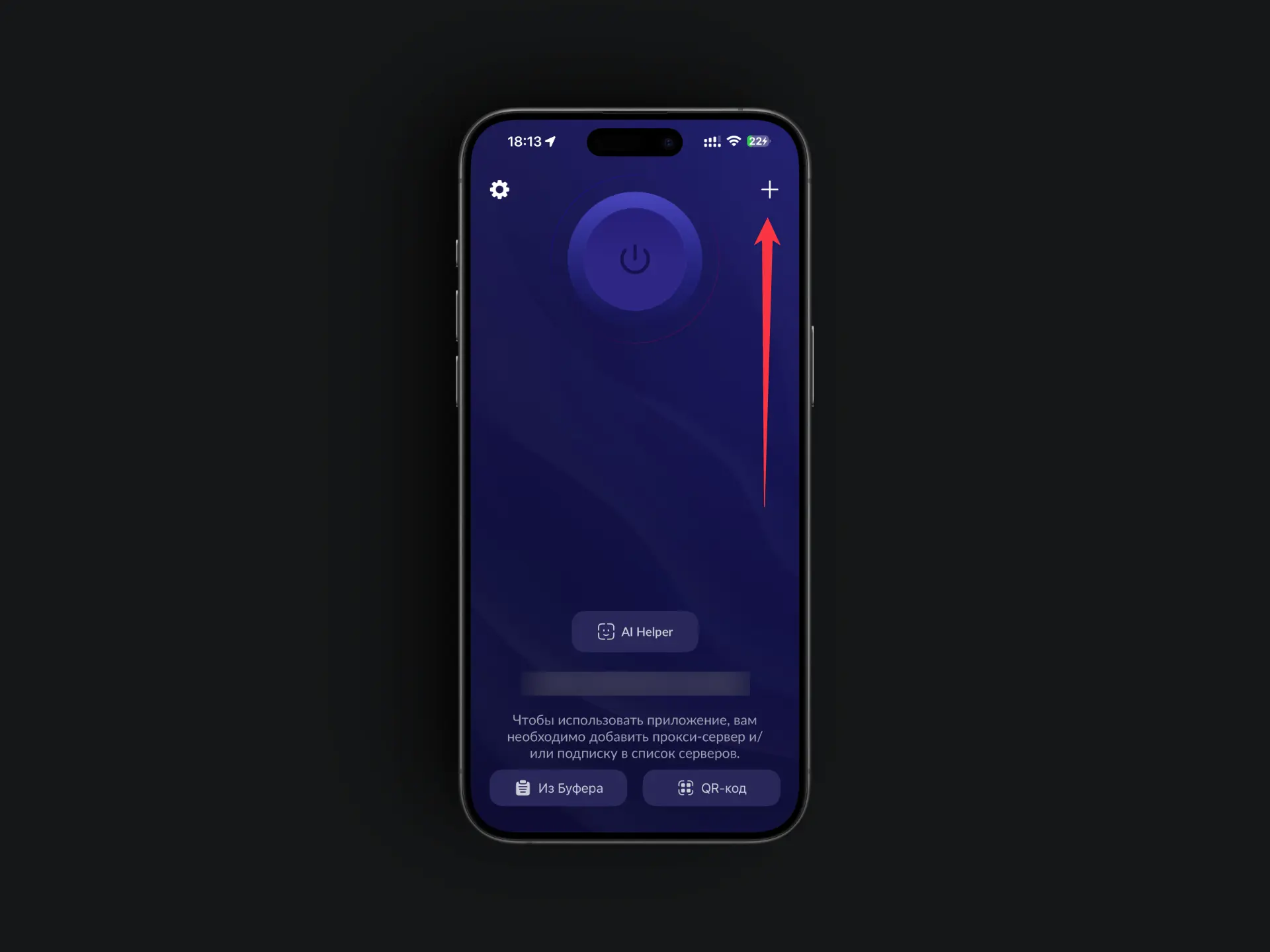
Open the Happ app
-
Tap the "+" button (add profile)
-
Paste the copied link and confirm adding it
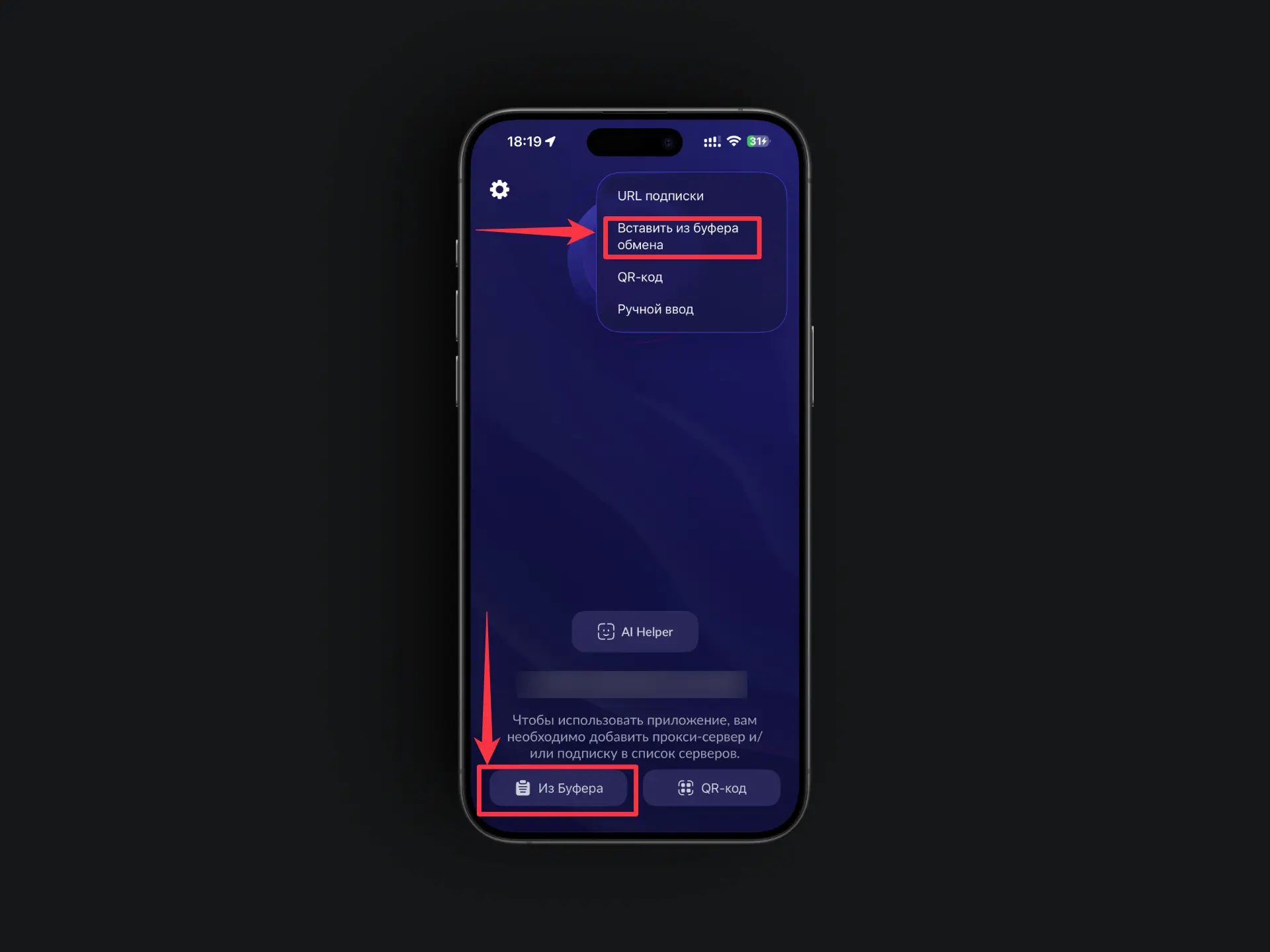
Result: your profile with a list of servers has appeared in the app.
Step 4. Choose a server
-
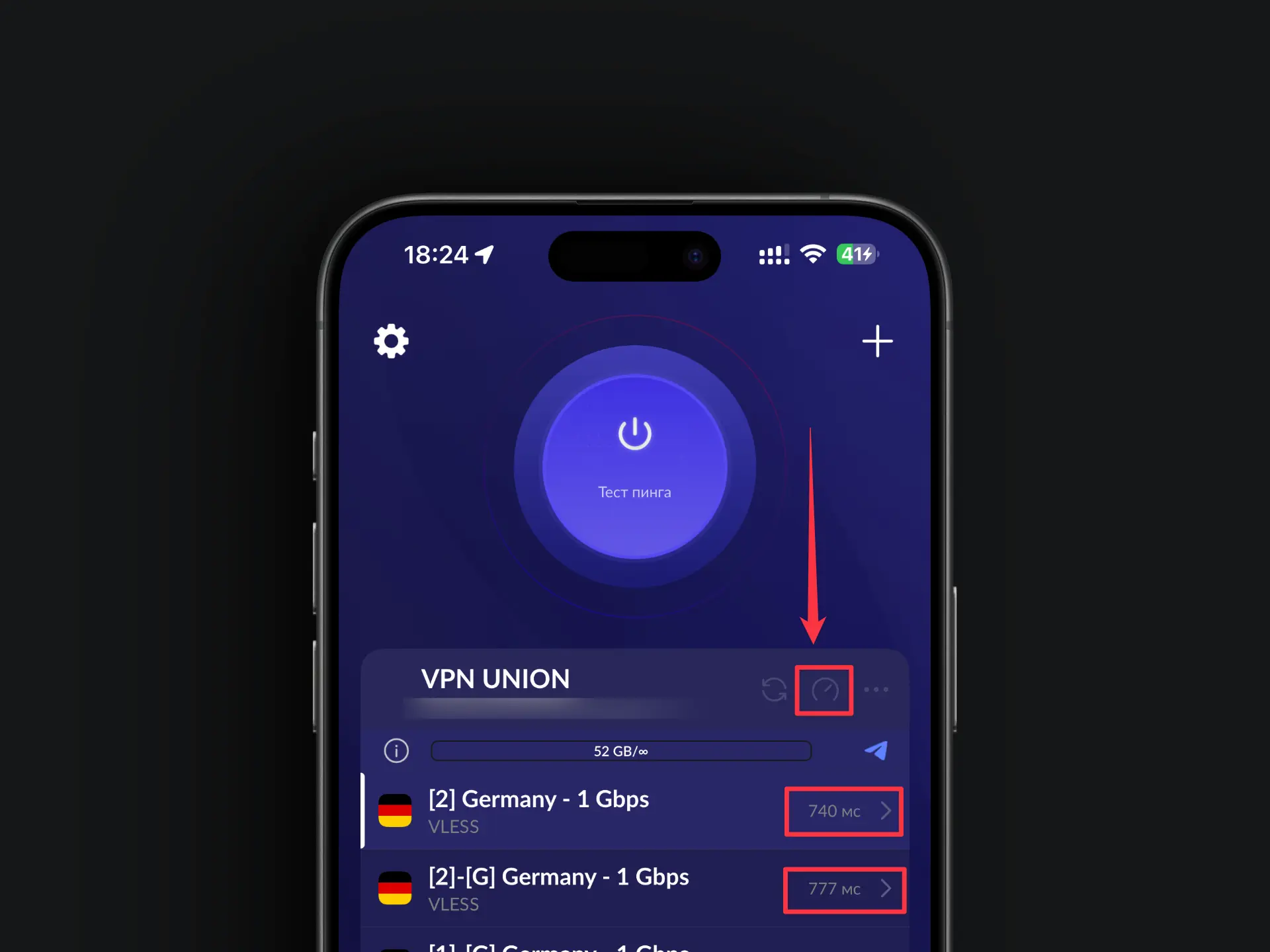
Tap "Test latency" (or "Ping")
-
Pick the server with the lowest number — the lower the ping, the faster the VPN.
Step 5. Connect
-
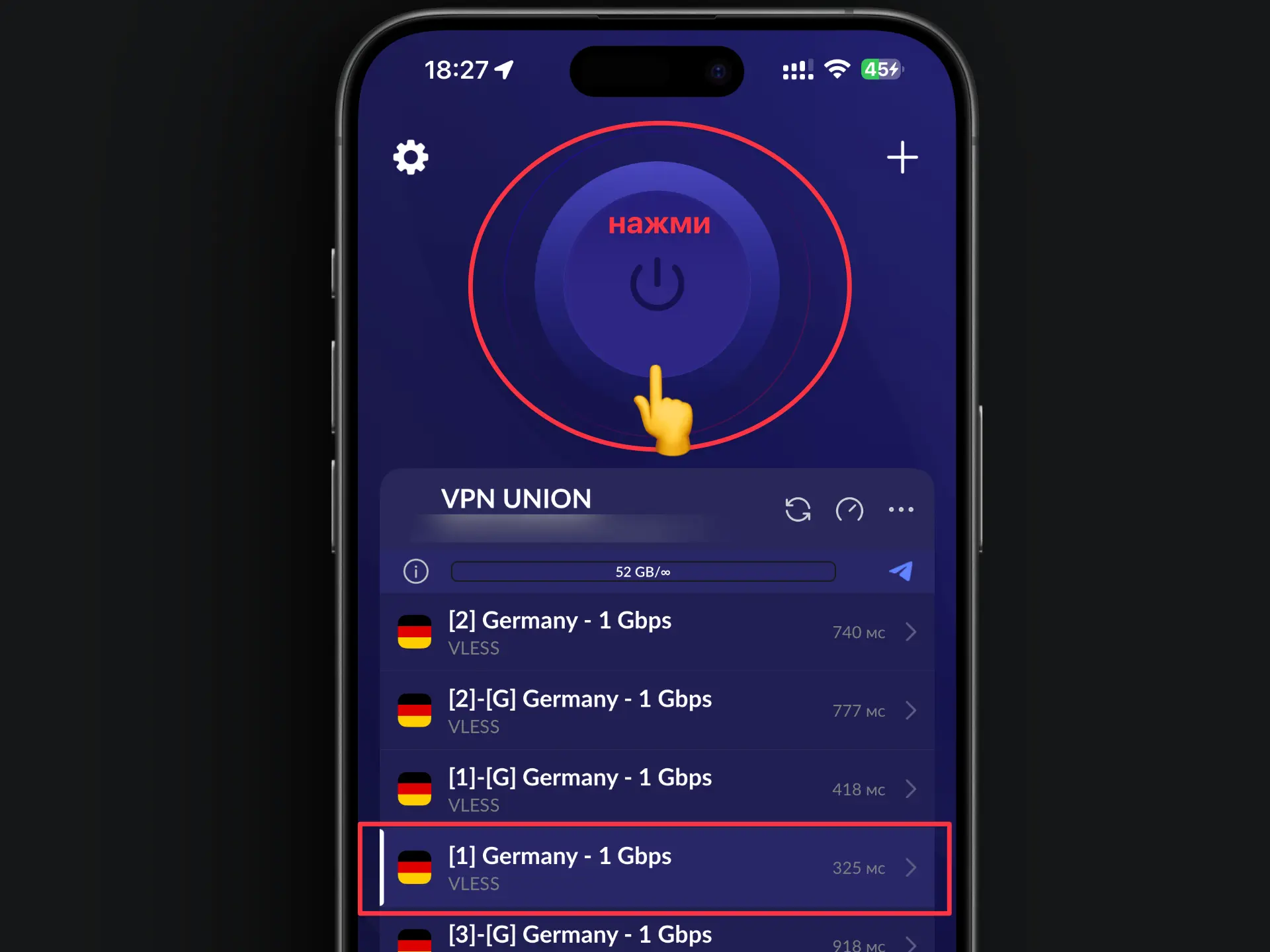
Tap the connect button
-
On the first connection, Android will ask for permission to set up a VPN connection — tap "OK" / "Allow"
-
A key/VPN icon will appear in the notification bar
The VPN icon in the notification bar means you're connected and your traffic is protected.
Disconnecting the VPN
- Open the Happ app
- Tap "Disconnect"
Need help?
Something's not working, or you still have questions — message us on Telegram. We'll help any time, day or night.