INCY for iOS
Works on iOS, macOS, tvOS, Android, Windows
Use INCY if Happ isn't available in your App Store region and you don't want to change your region — INCY works the same way: add the activation link, pick a server, connect.
Download the app
INCY is a free app. It's installed from the App Store.
Step 1. Install the app
- Open the App Store
- Search for "INCY"
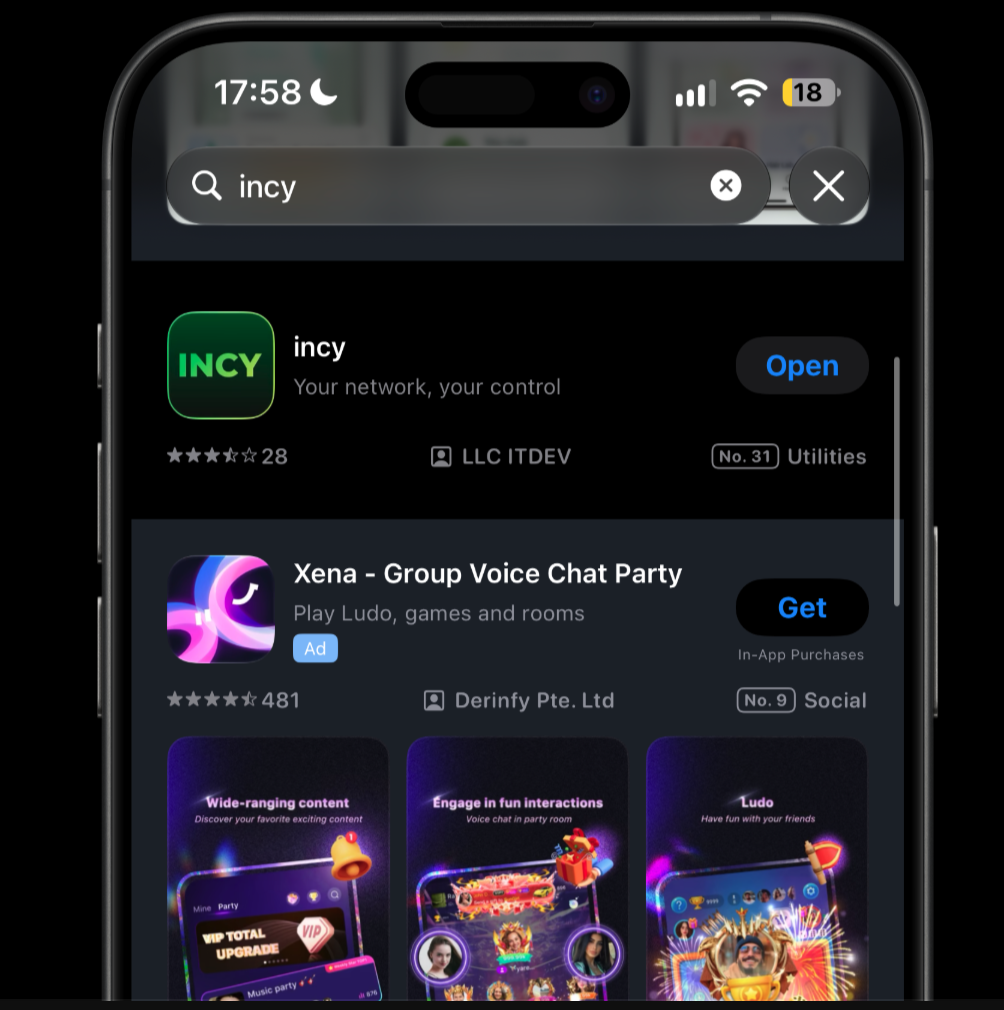
- Tap "Get" and wait for the install to finish
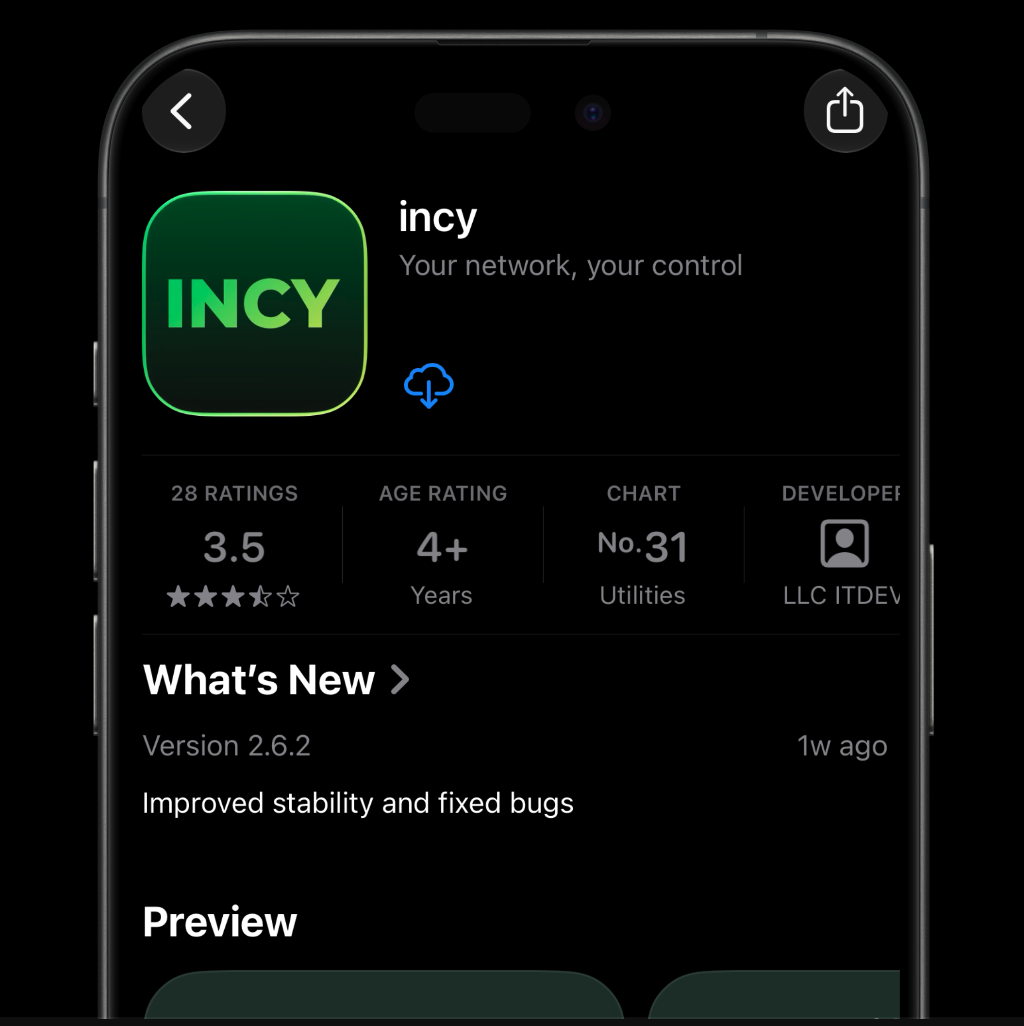
Result: the INCY icon has appeared on your home screen.
Step 2. Copy your activation link
The activation link is your personal subscription. Get it from our Telegram bot:
- Open the Telegram bot
- Tap 📲 Main menu
- Choose 📖 Profile
- Tap "Activation link:" — it will be copied automatically
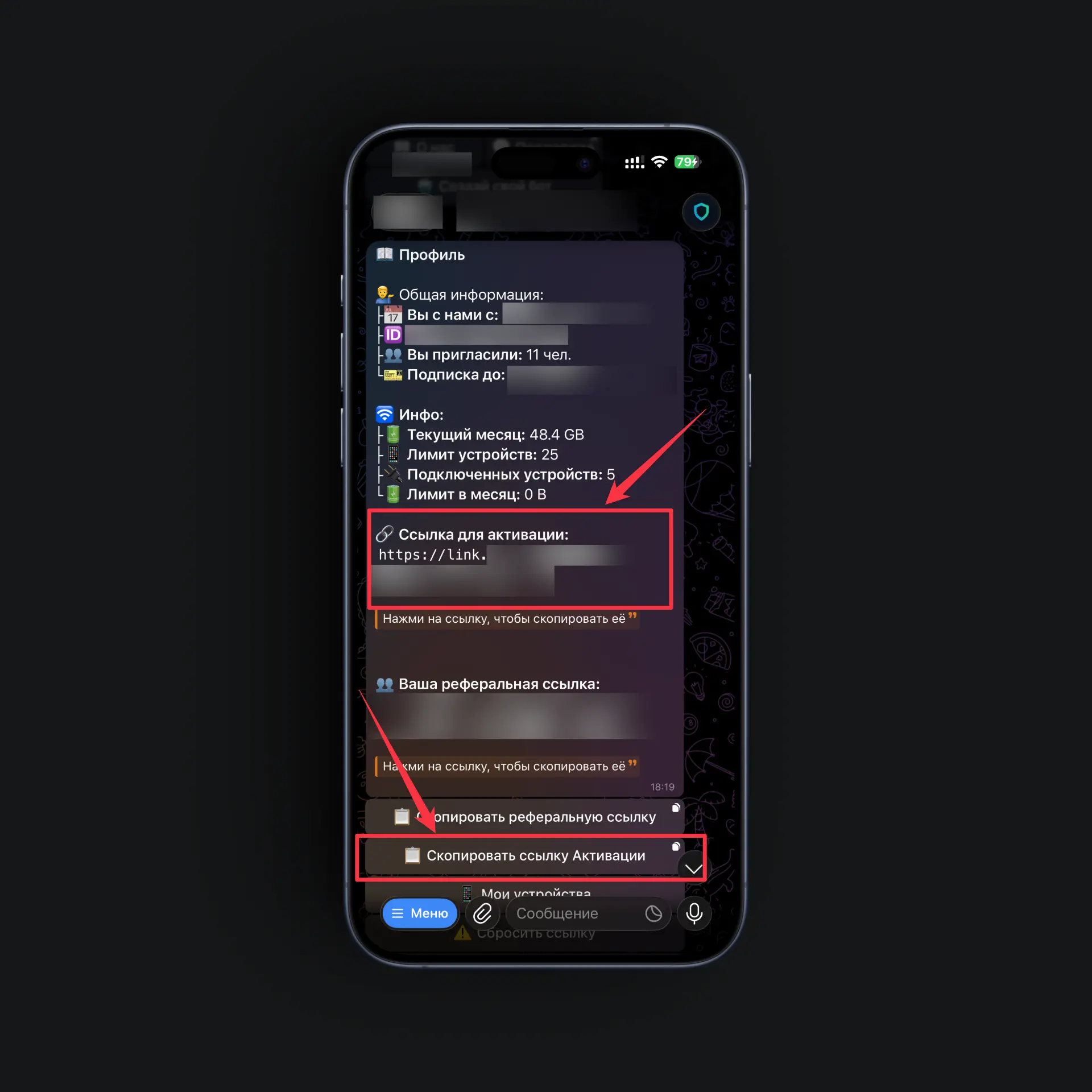
Result: the link is on your clipboard — we'll hand it to the app in the next step.
Step 3. Add the subscription
Button names below are given in English with the Russian original in parentheses, matching what you'll see on screen.
-
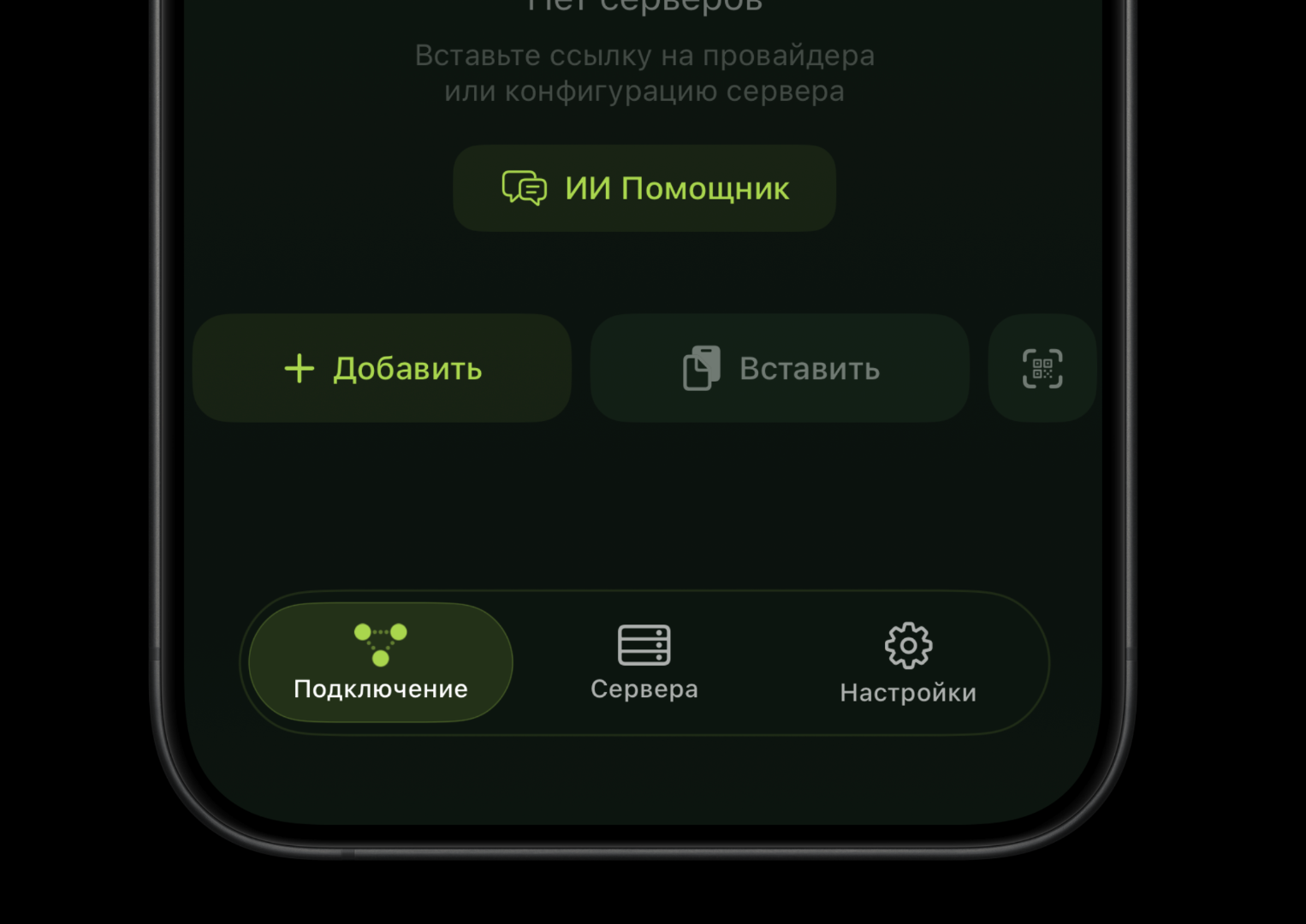
Open the INCY app — on the empty screen you'll see "Add" ("Добавить"), "Paste" ("Вставить"), and a QR code scanner
-
Tap "Paste" ("Вставить") — the link is already copied from the previous step
-
Tap "Allow Paste" ("Разрешить вставку") in the iOS system prompt
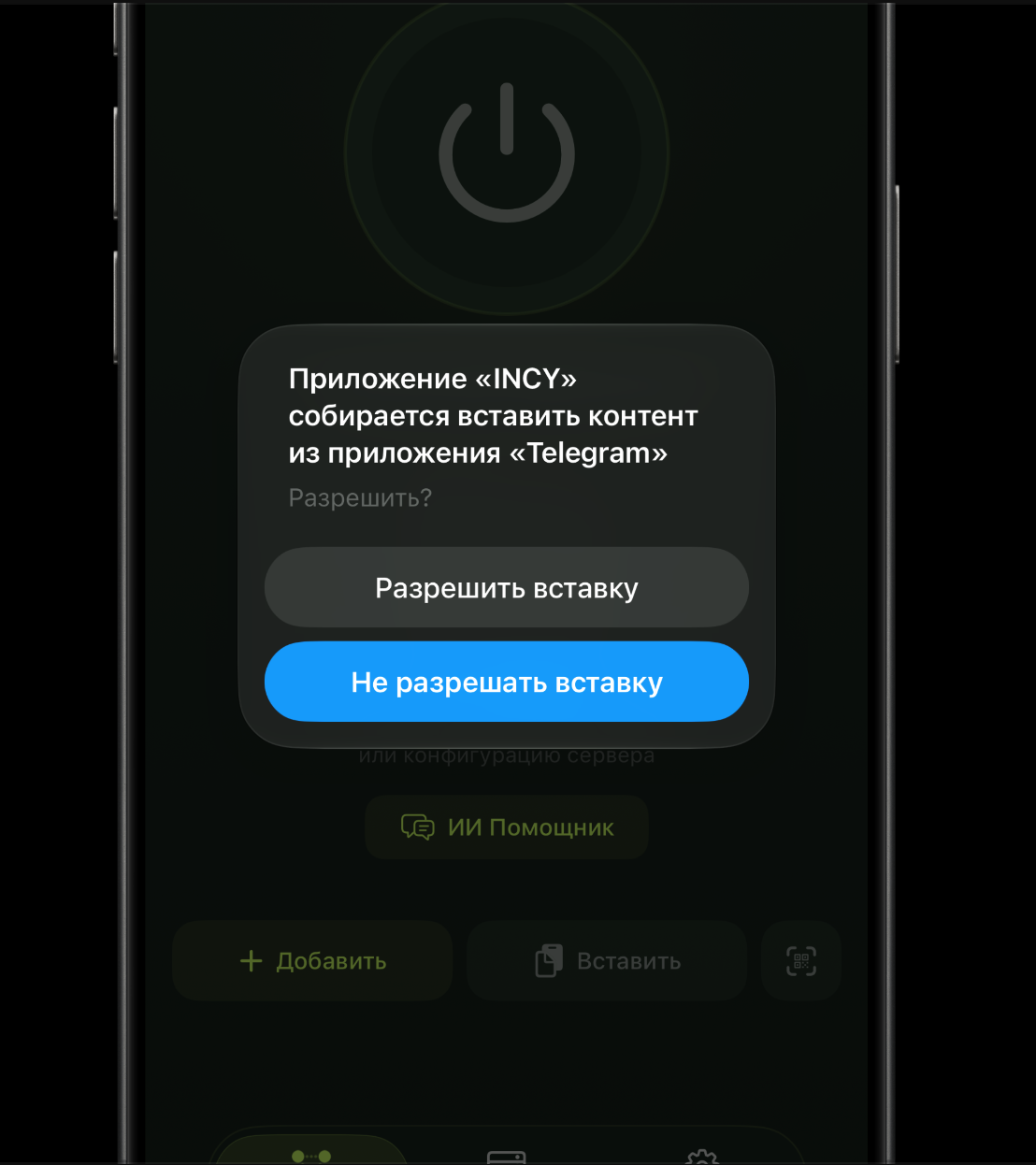
Result: your profile with a list of servers has appeared in the app.
Step 4. Choose a server
-
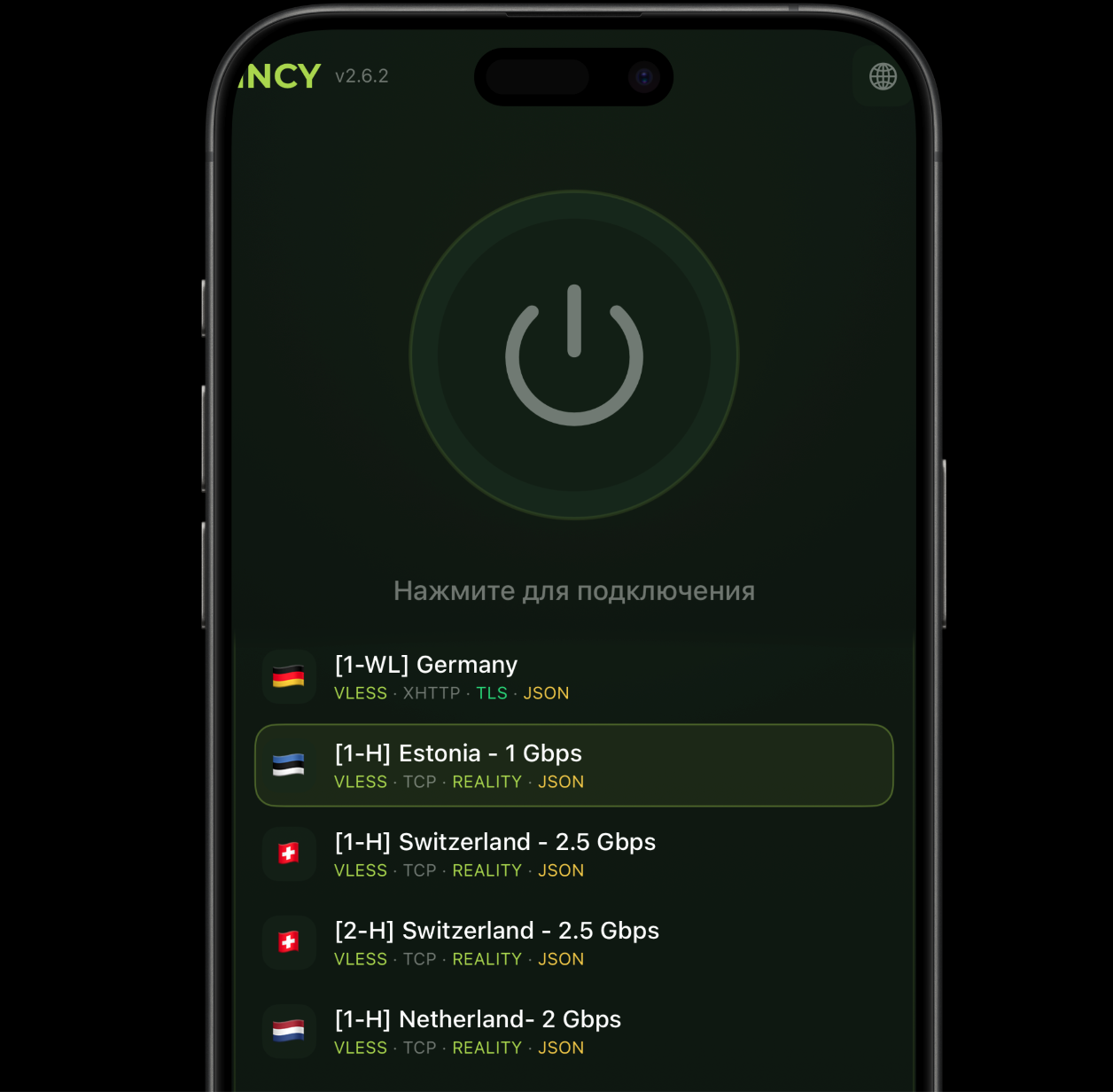
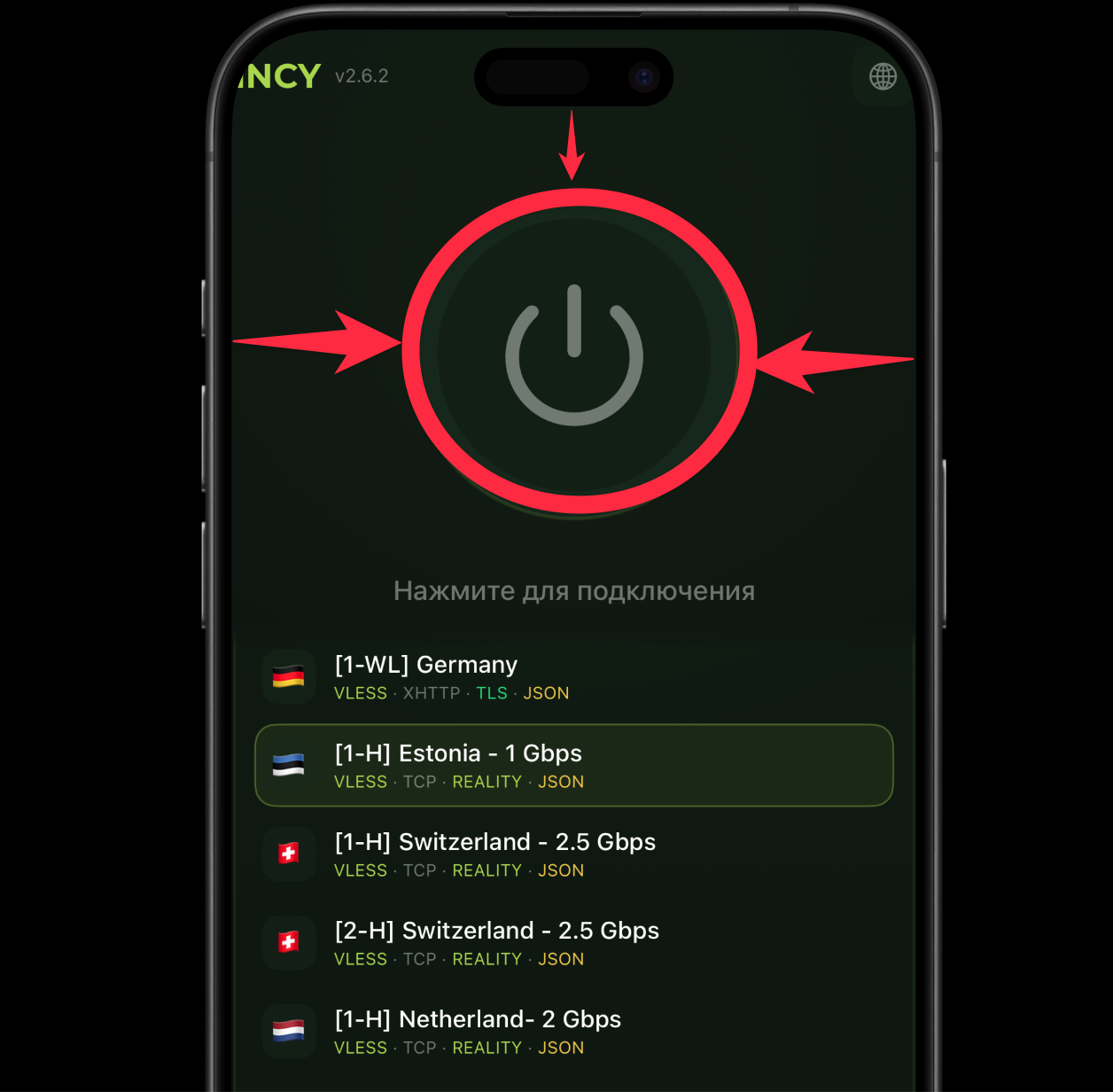
Each server in the list shows a name and an approximate speed — e.g. "[1-H] Estonia - 1 Gbps"
-
Tap the server you want to select it
Step 5. Connect
-
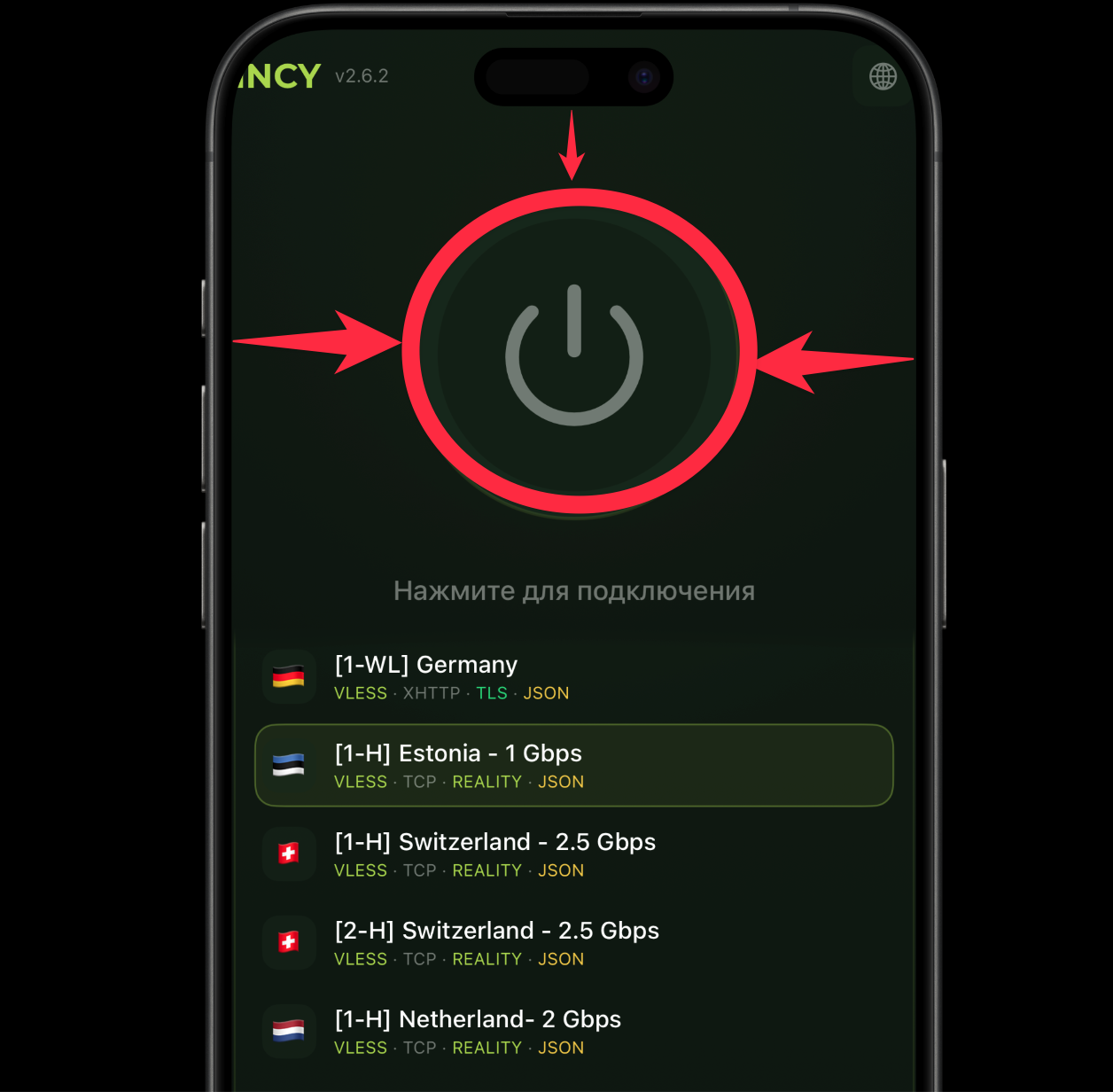
Tap the large round connect button at the top of the screen
-
Tap "Allow" and confirm with Face ID/Touch ID — iOS asks for this once, on the first connection
-
A VPN icon will appear at the top of the screen
The VPN icon in the status bar means you're connected and your traffic is protected.
Disconnecting the VPN
- Open the INCY app
- Tap the active profile to disconnect
Need help?
Something's not working, or you still have questions — message us on Telegram. We'll help any time, day or night.