Koala Clash for Windows
Works on macOS, Windows, Linux
Download the program
Koala Clash is a free program. To install it you'll need the .exe file.
Important: only download it from the official GitHub source!
Step 1. Install the program
-
Run the downloaded
.exefile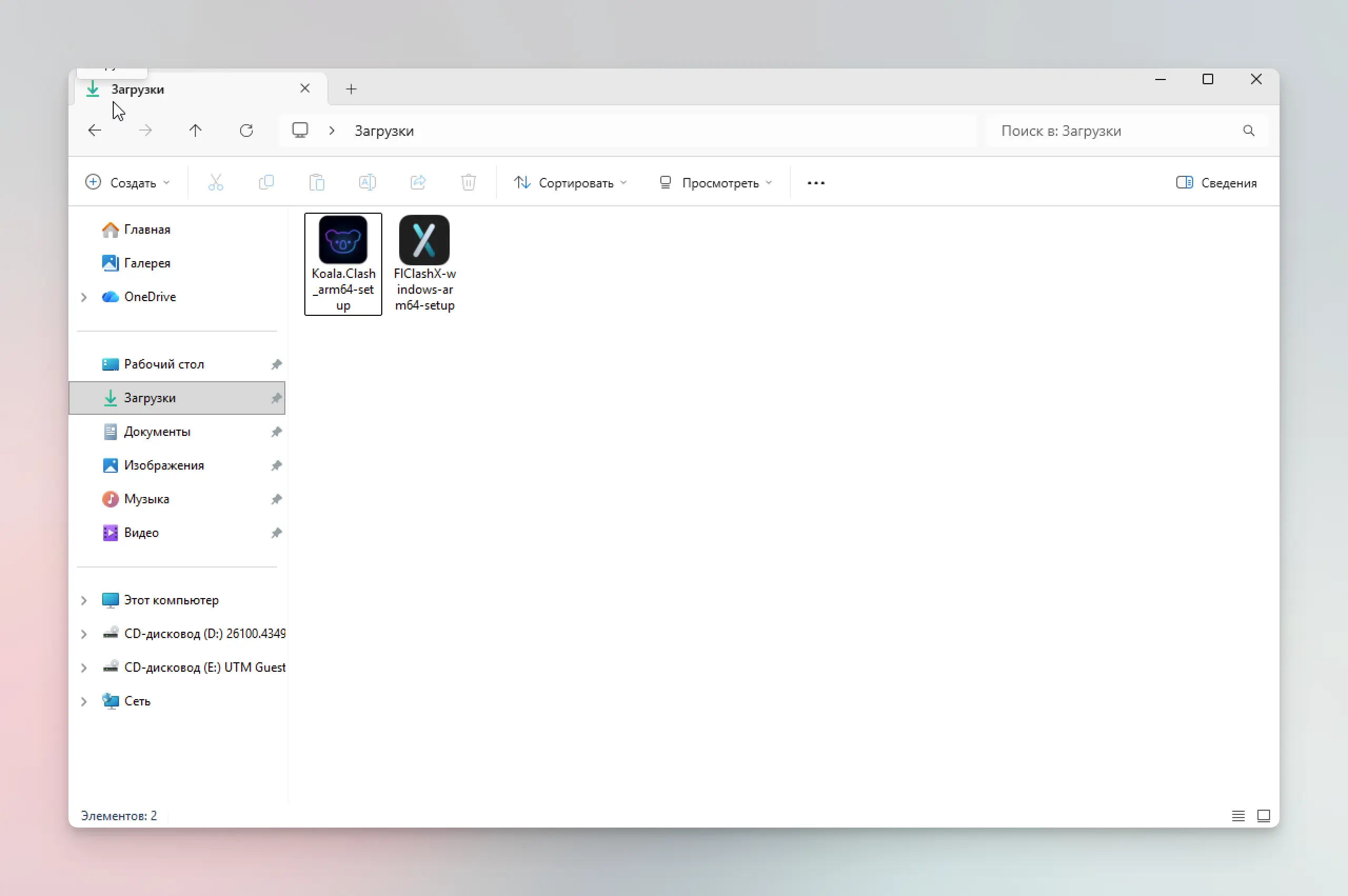
-
Don't worry about Windows Defender! This is a normal warning for new programs:
- Click "More info"
- Then "Run anyway"
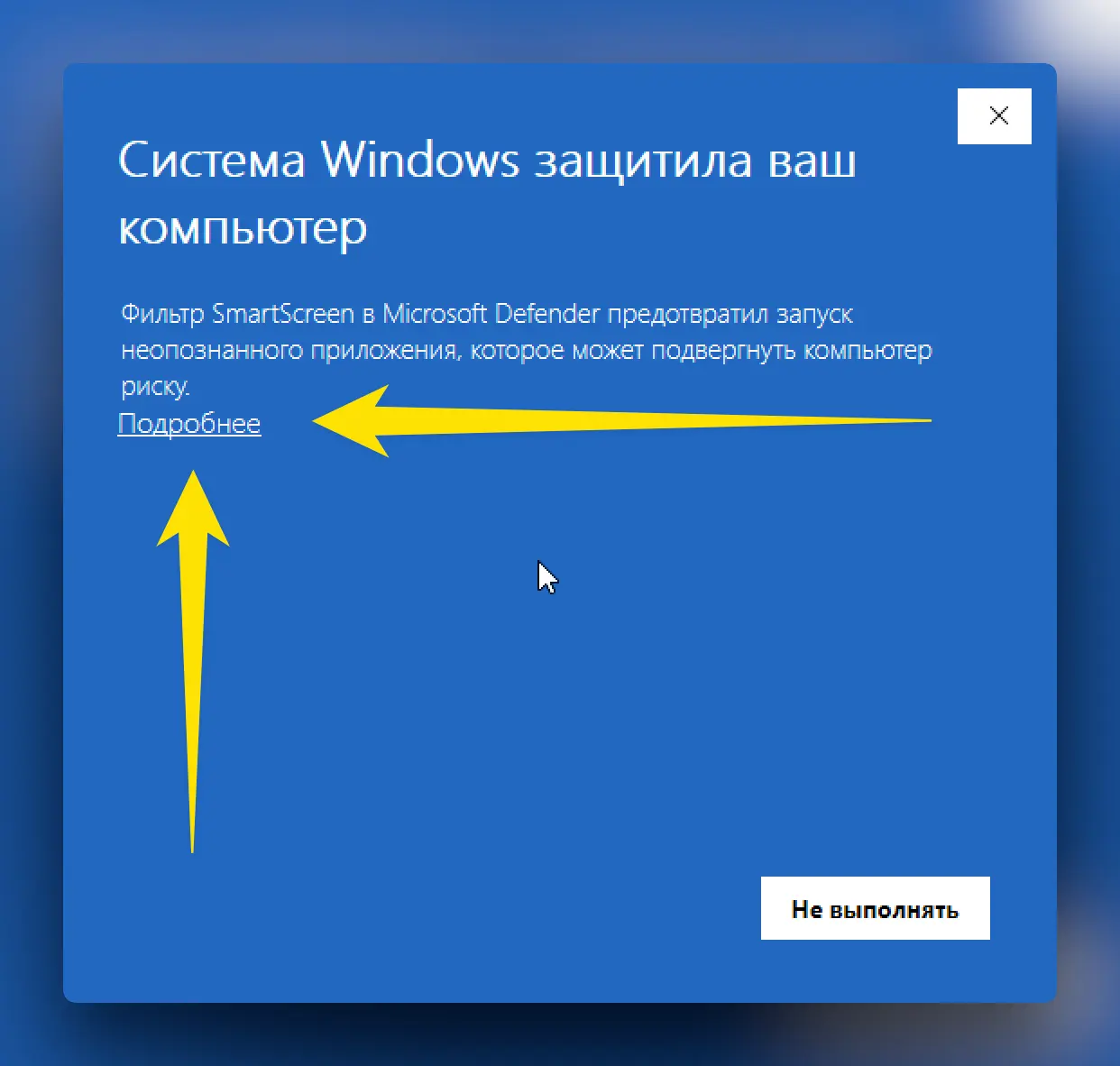
- Follow the installer's prompts (usually just clicking "Next")
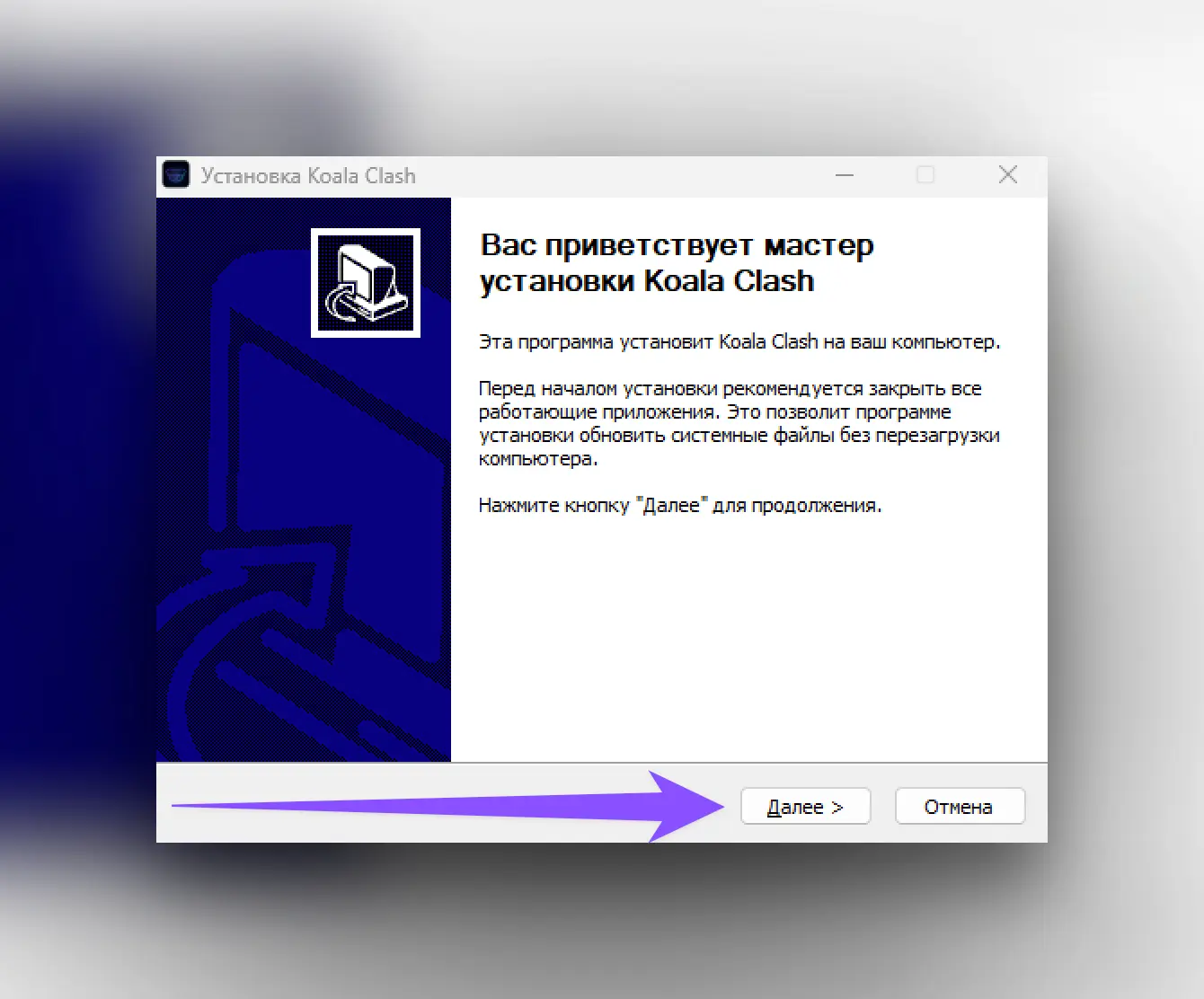
Installation takes 1-2 minutes. All the Windows warnings are normal — the program is safe.
Result: a Koala Clash shortcut has appeared on your desktop.
Step 2. Copy your activation link
The activation link is your personal subscription. Get it from our Telegram bot:
- Open the Telegram bot
- Tap 📲 Main menu
- Choose 📖 Profile
- Tap "Activation link:" — it will be copied automatically
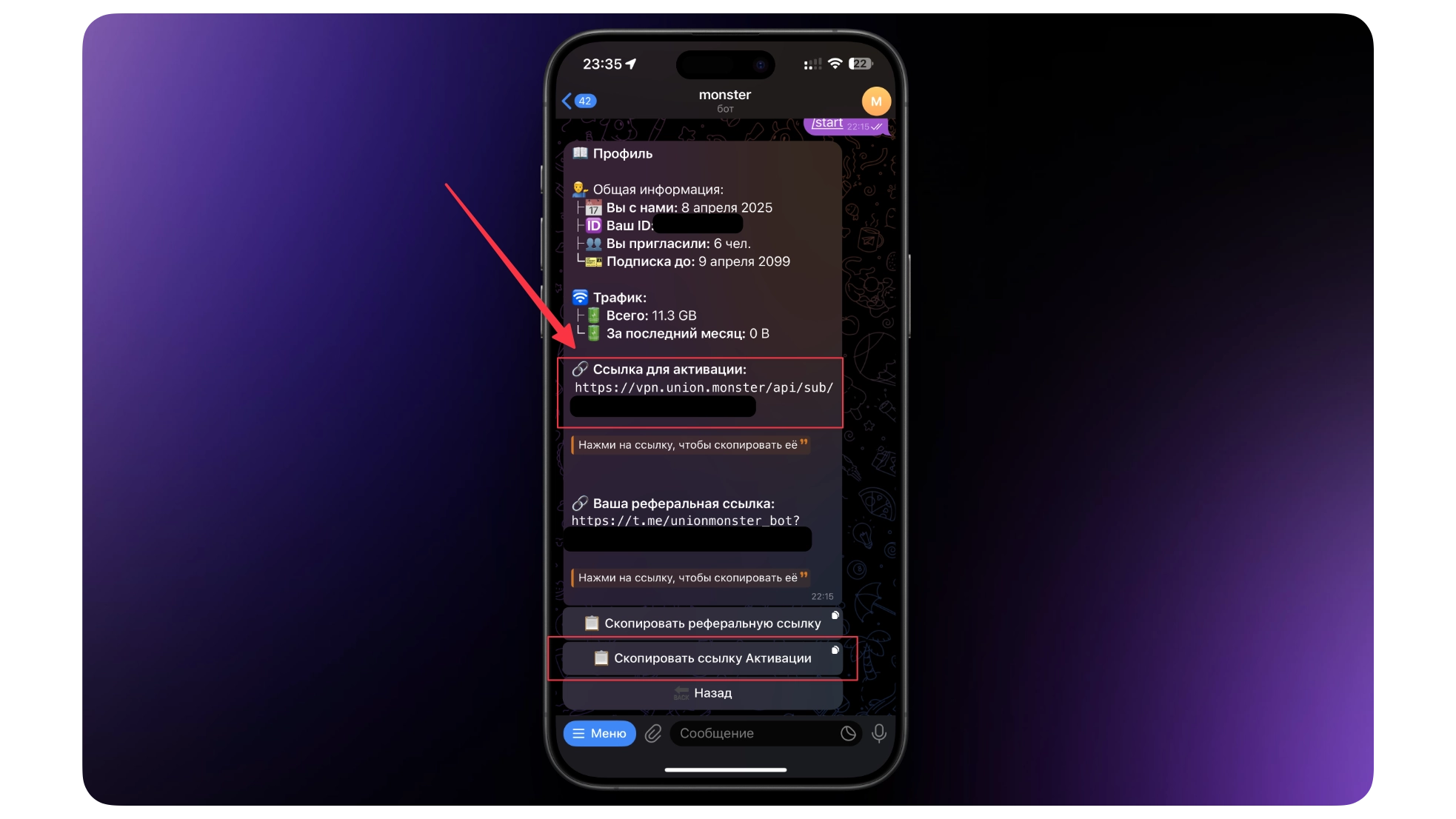
To make sure the link was copied, open any app (like Notepad) and press Ctrl+V — a long link should be pasted in.
Result: the link is on your clipboard — we'll hand it to the program in the next step.
Step 3. Add the subscription
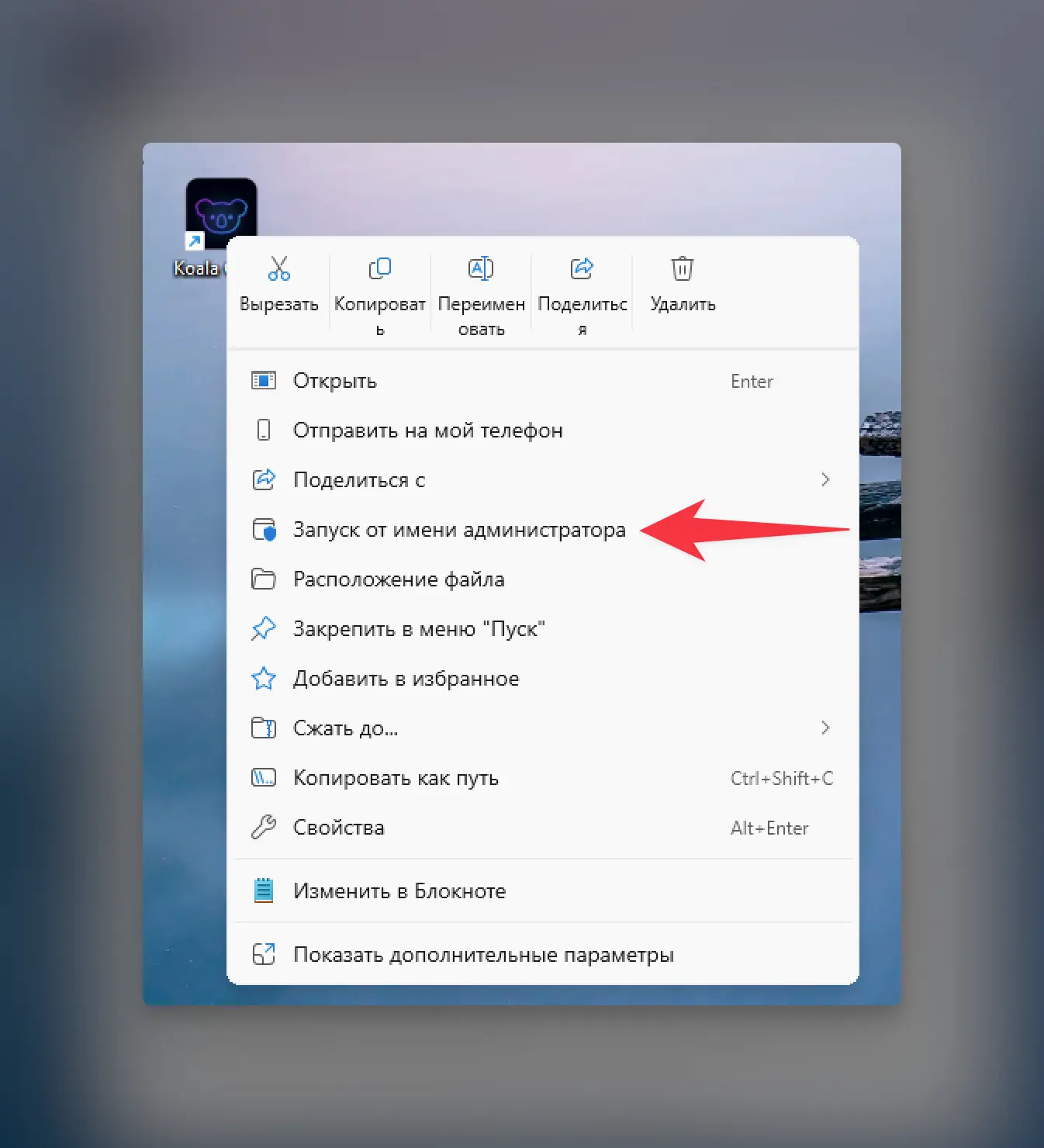
- Run the program as administrator:
- Find the Koala Clash shortcut
- Right-click it
- Choose "Run as administrator"
-
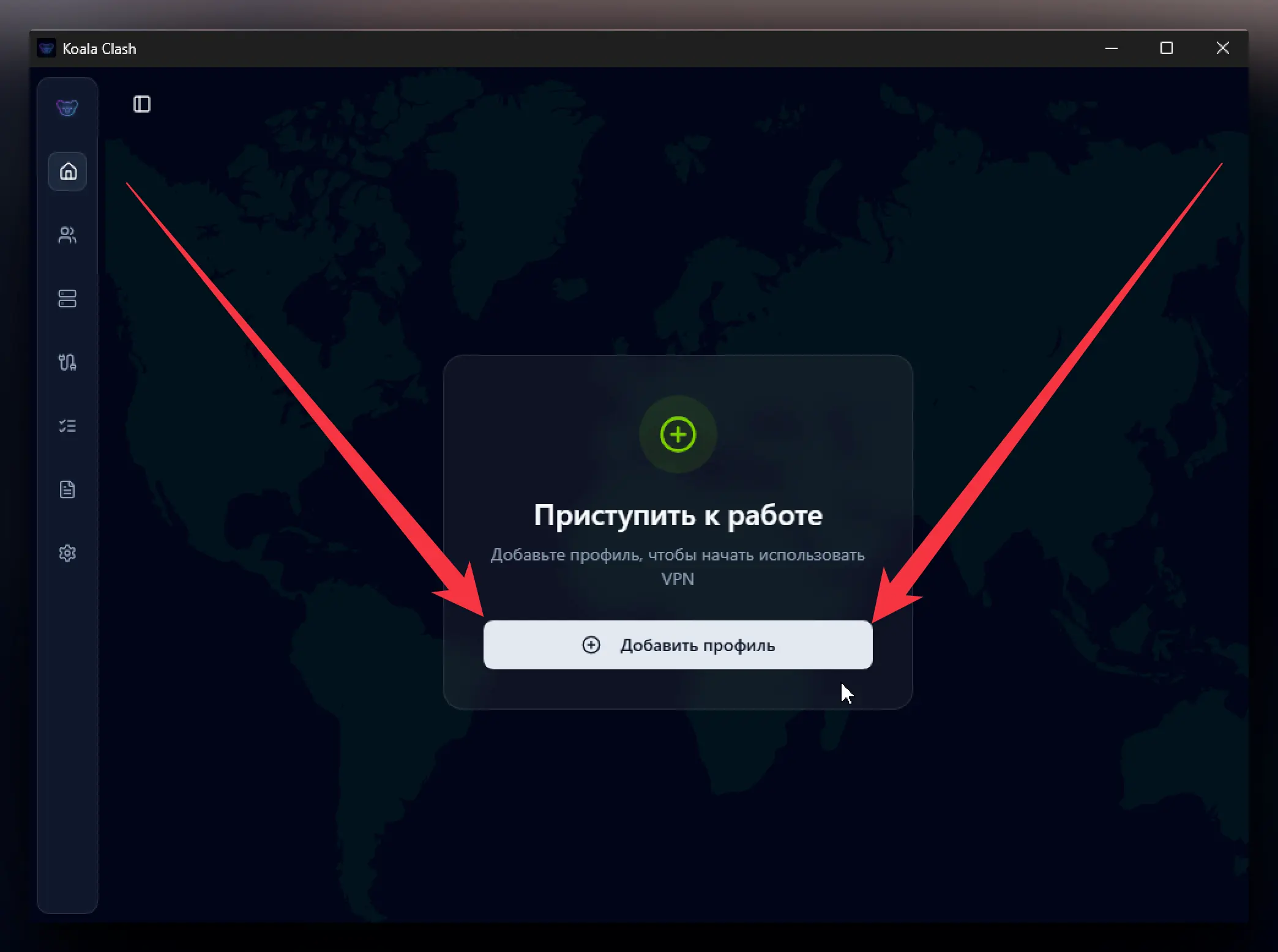
Click "Add profile" in the main window
-
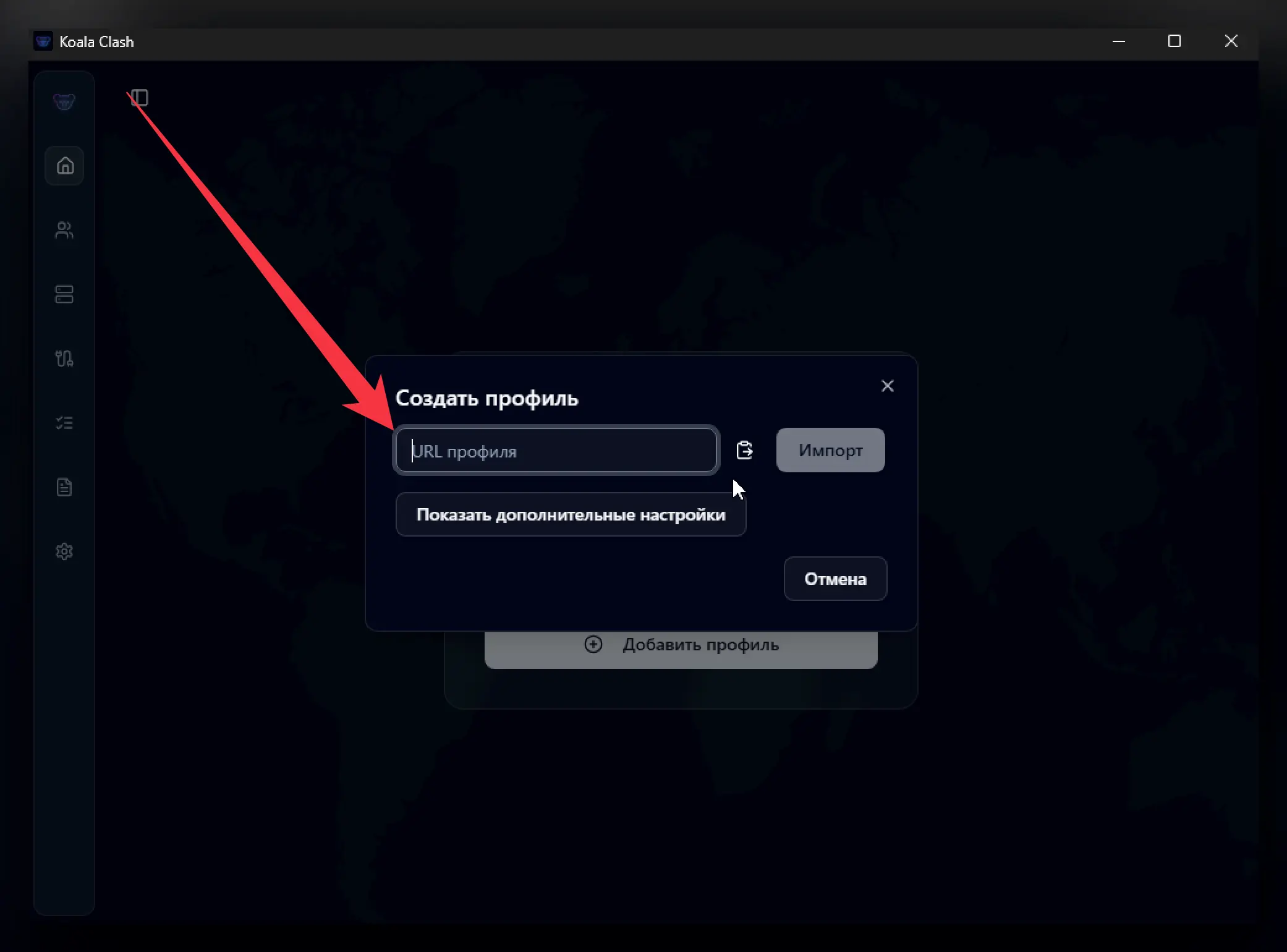
Paste the activation link you copied in Step 2:
- Press
Ctrl+Vin the empty field - Or right-click → "Paste"
- Click "Import"
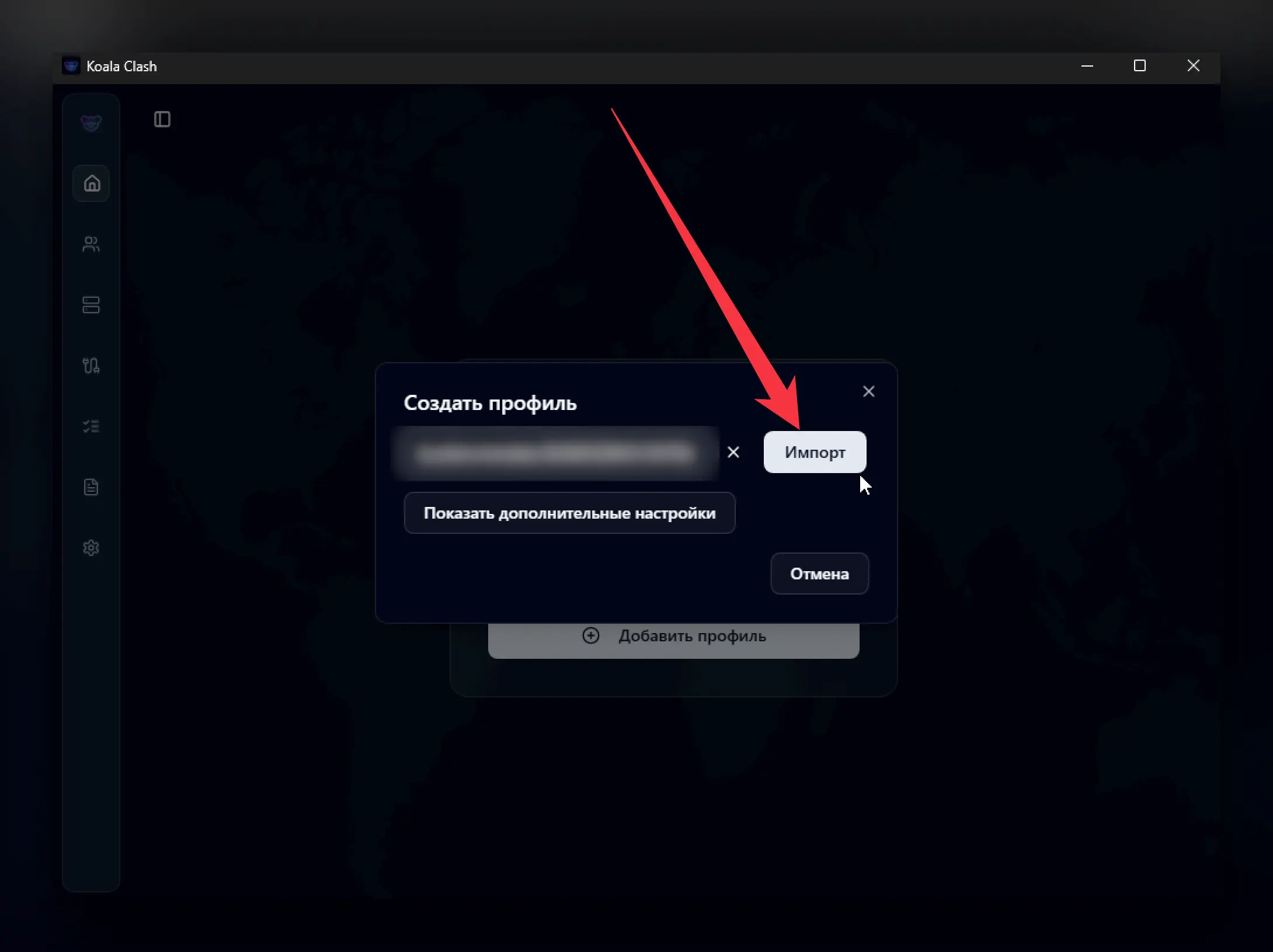
Result: the subscription is added, a list of servers has appeared in the program.
Step 4. Choose a server and connect
For the VPN to run fast, pick the server with the best speed:
-
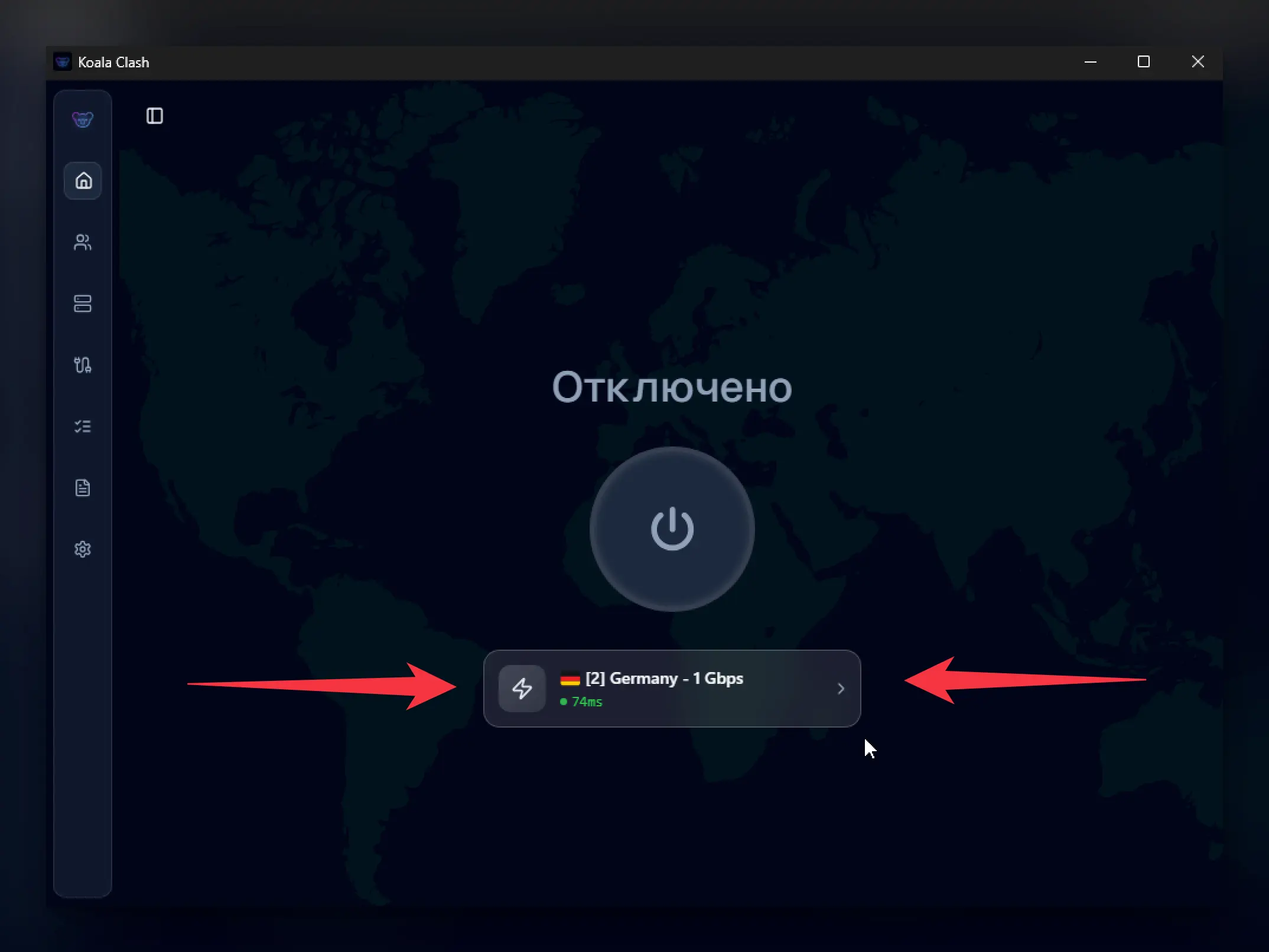
Open the server list:
-
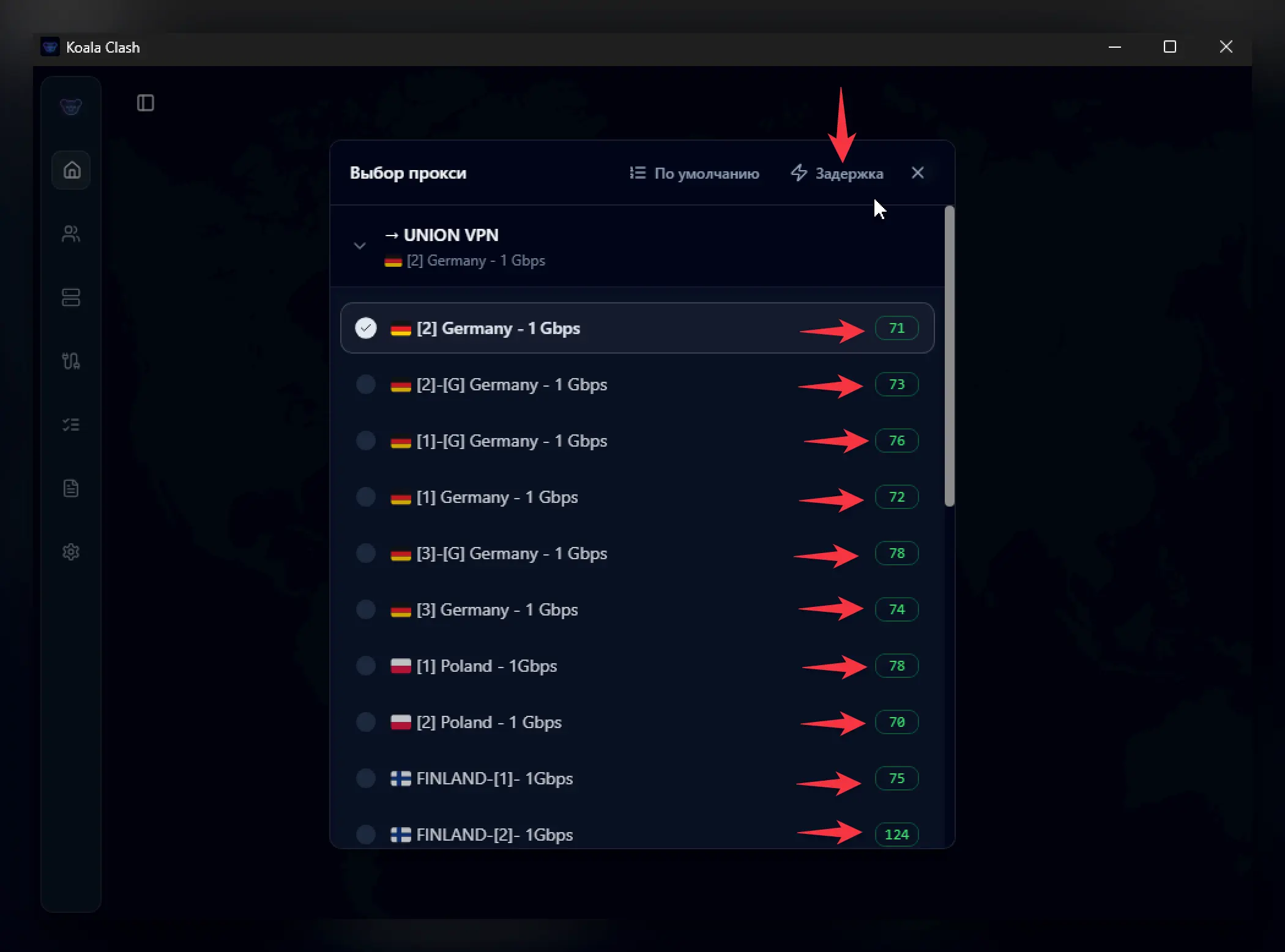
Find the fastest server:
- Click the "Latency" button (the program will test the speed of all servers)
- Look at the numbers next to the servers — that's the ping in milliseconds
- Pick the server with the lowest number (the lower, the faster)
- Turn on the VPN:
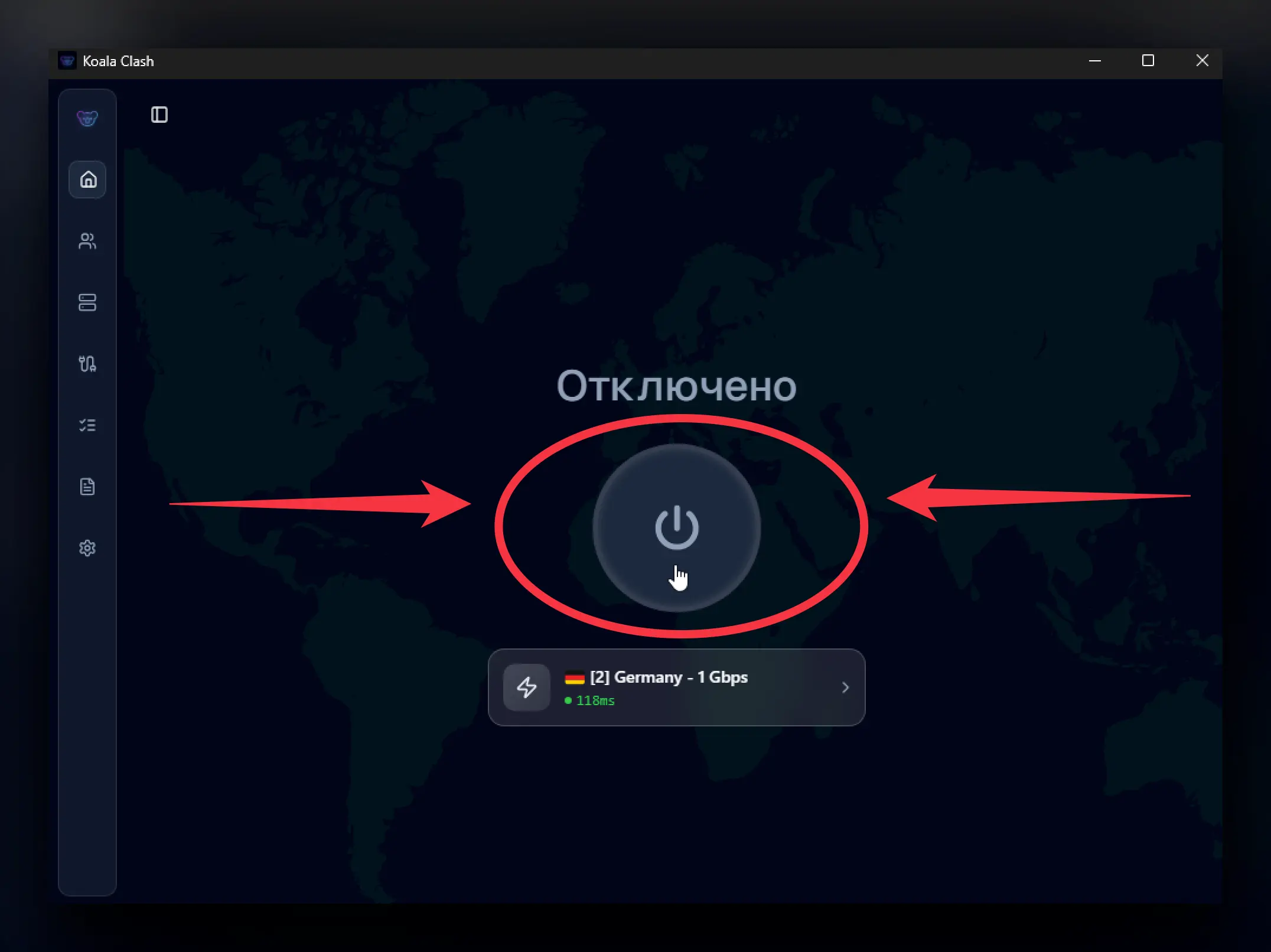
VPN is on — your traffic is protected.
Turning the VPN on and off
The same button is used to turn on and turn off the VPN. When the VPN is on, the button will be active (usually green or highlighted).
Need help?
Something's not working, or you still have questions — message us on Telegram. We'll help any time, day or night.