Happ for iOS
Works on iOS, macOS (M1–M5), tvOS, Windows, Linux, Android
Download the app
Happ is a free app. On iPhone/iPad, the App Store is the only way to install it.
If the button doesn't open the app — find it manually (Step 1 below).
If Happ isn't showing up in the App Store — change your App Store region using this guide, then come back here and continue from Step 2 after downloading it.
Step 1. Install the app
- Open the App Store
- Search for "Happ"
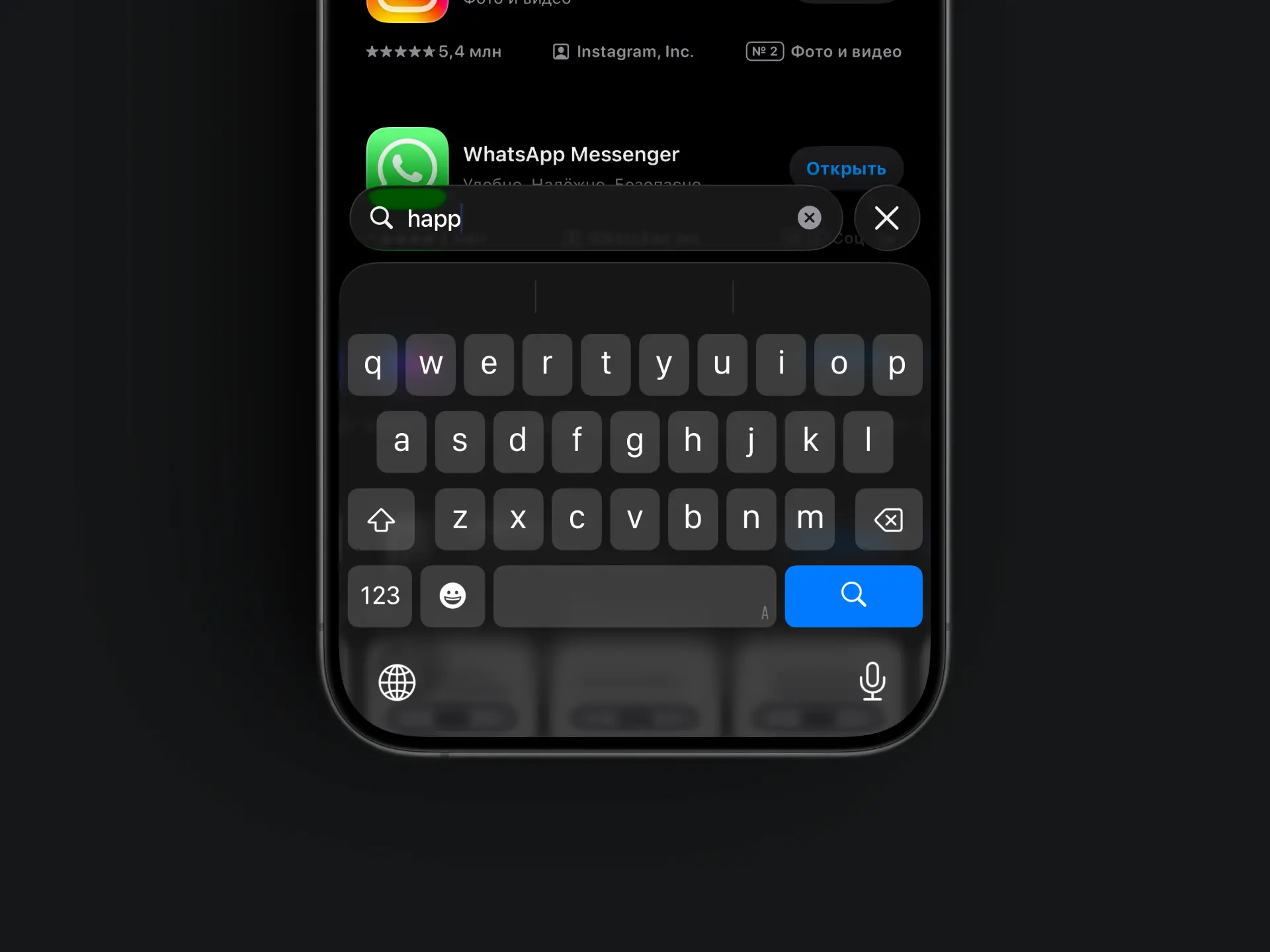
- Tap "Get" and wait for the install to finish
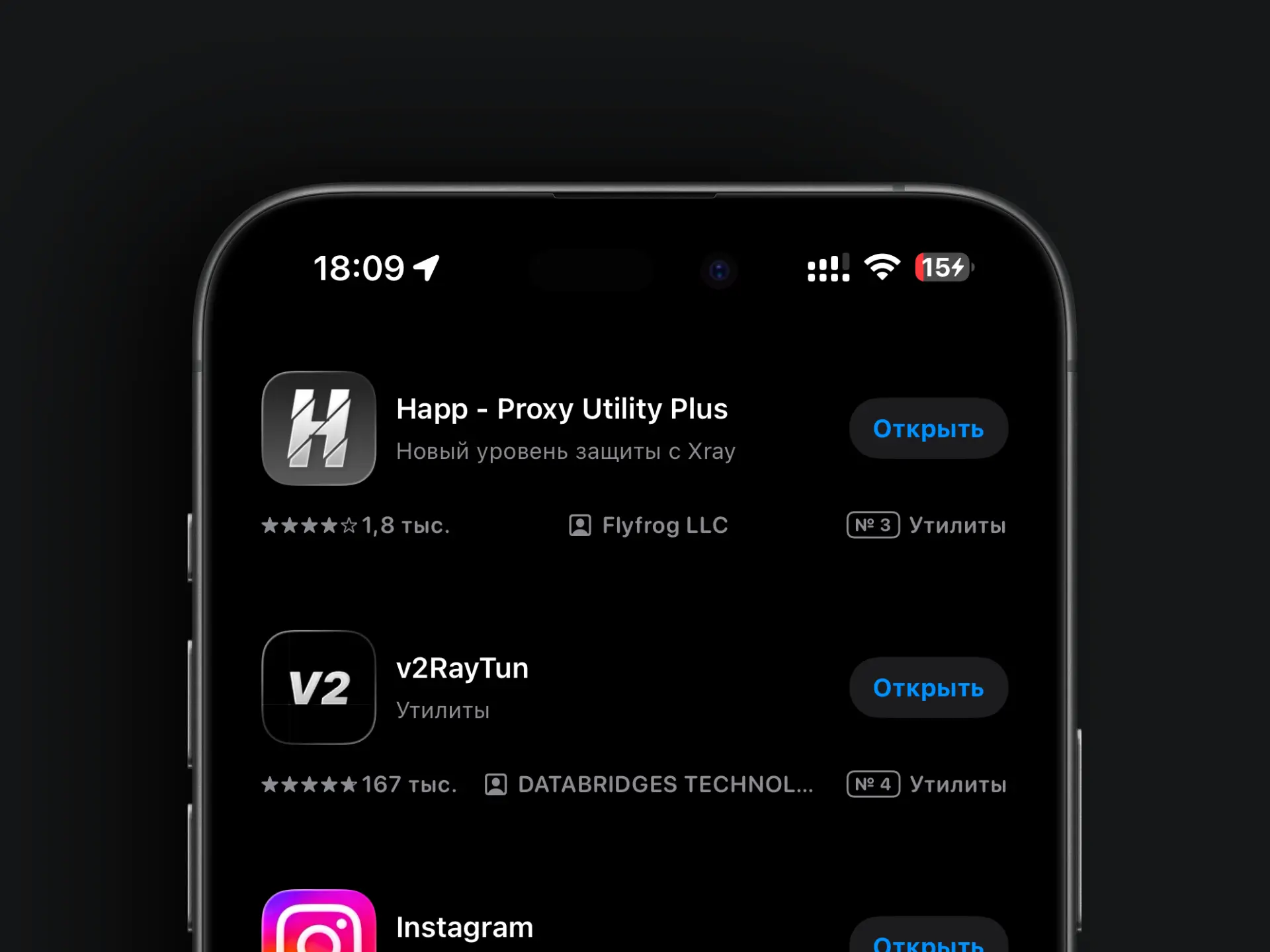
Result: the Happ icon has appeared on your home screen.
Step 2. Copy your activation link
The activation link is your personal subscription. Get it from our Telegram bot:
- Open the Telegram bot
- Tap 📲 Main menu
- Choose 📖 Profile
- Tap "Activation link:" — it will be copied automatically
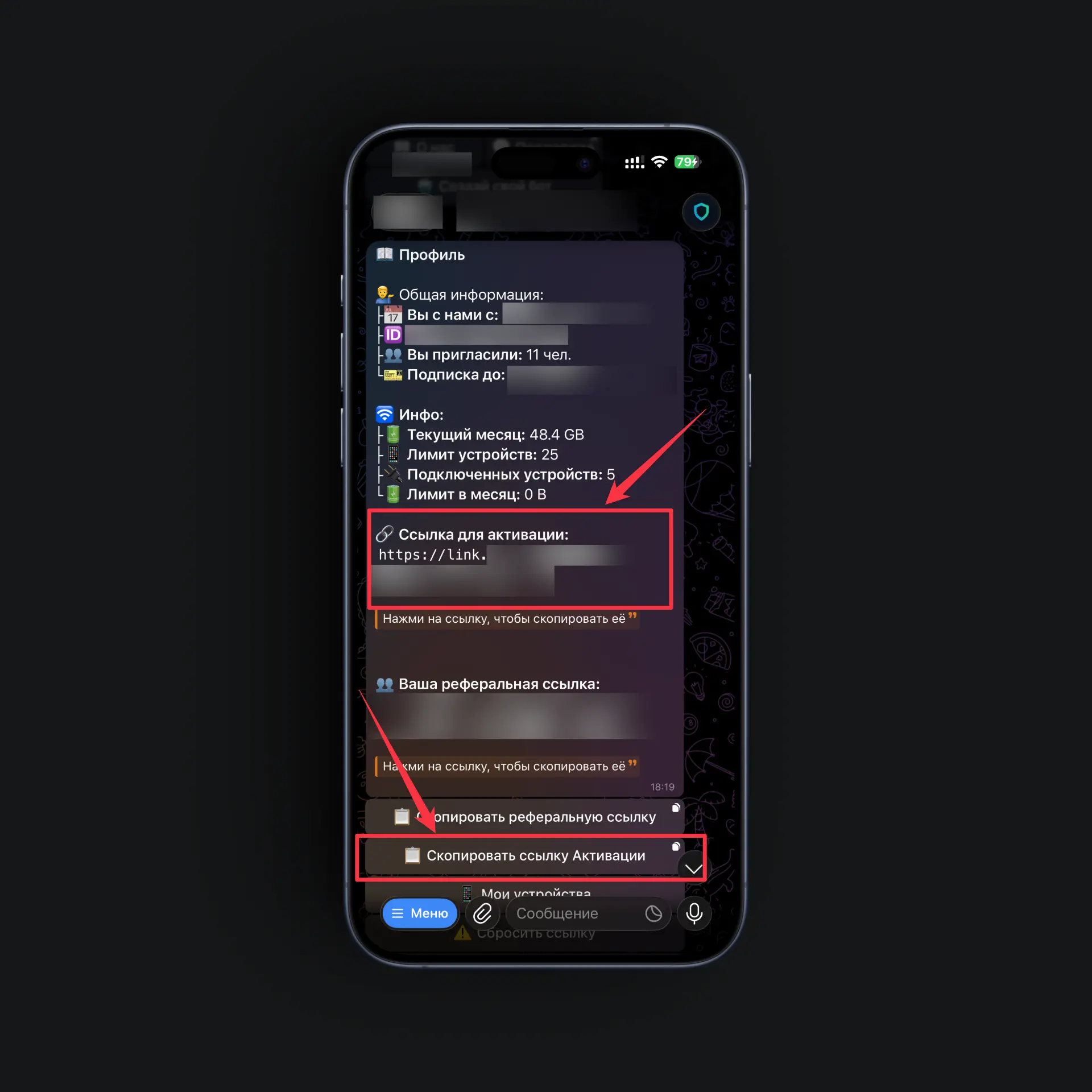
Result: the link is on your clipboard — we'll hand it to the app in the next step.
Step 3. Add the subscription
-
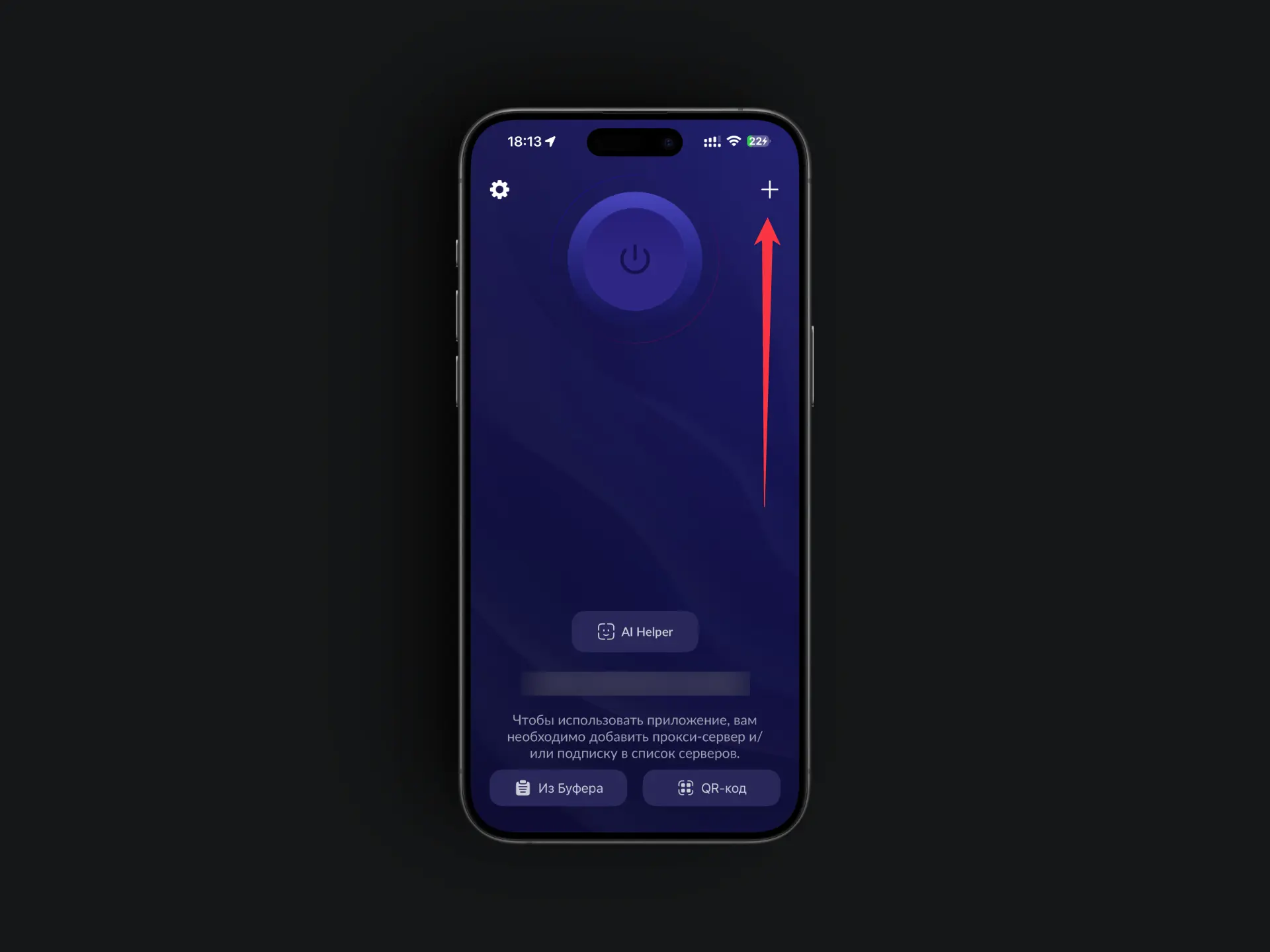
Open the Happ app
-
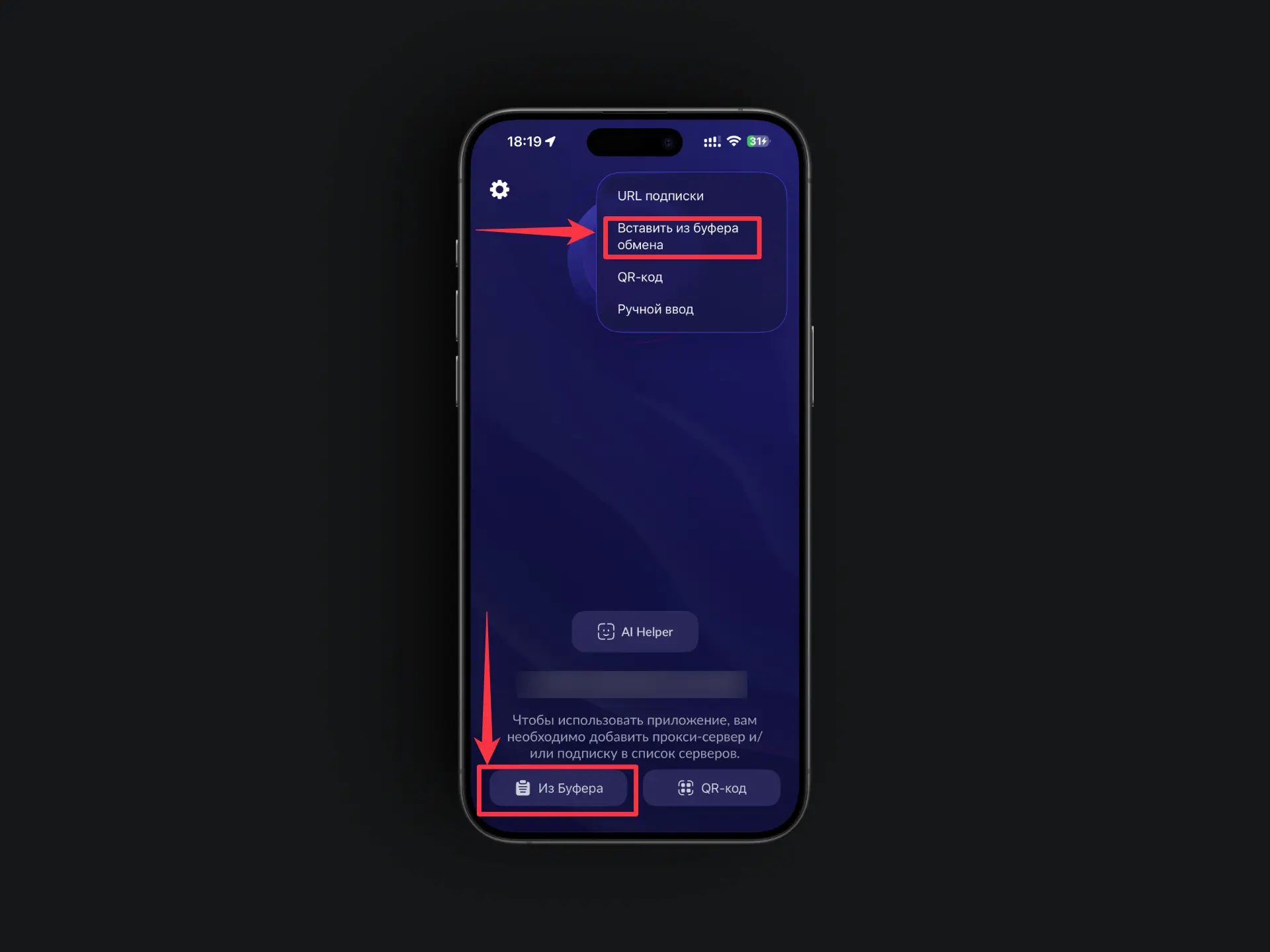
Tap the "+" button (add profile)
-
Paste the copied link
-
Tap "Allow Paste"
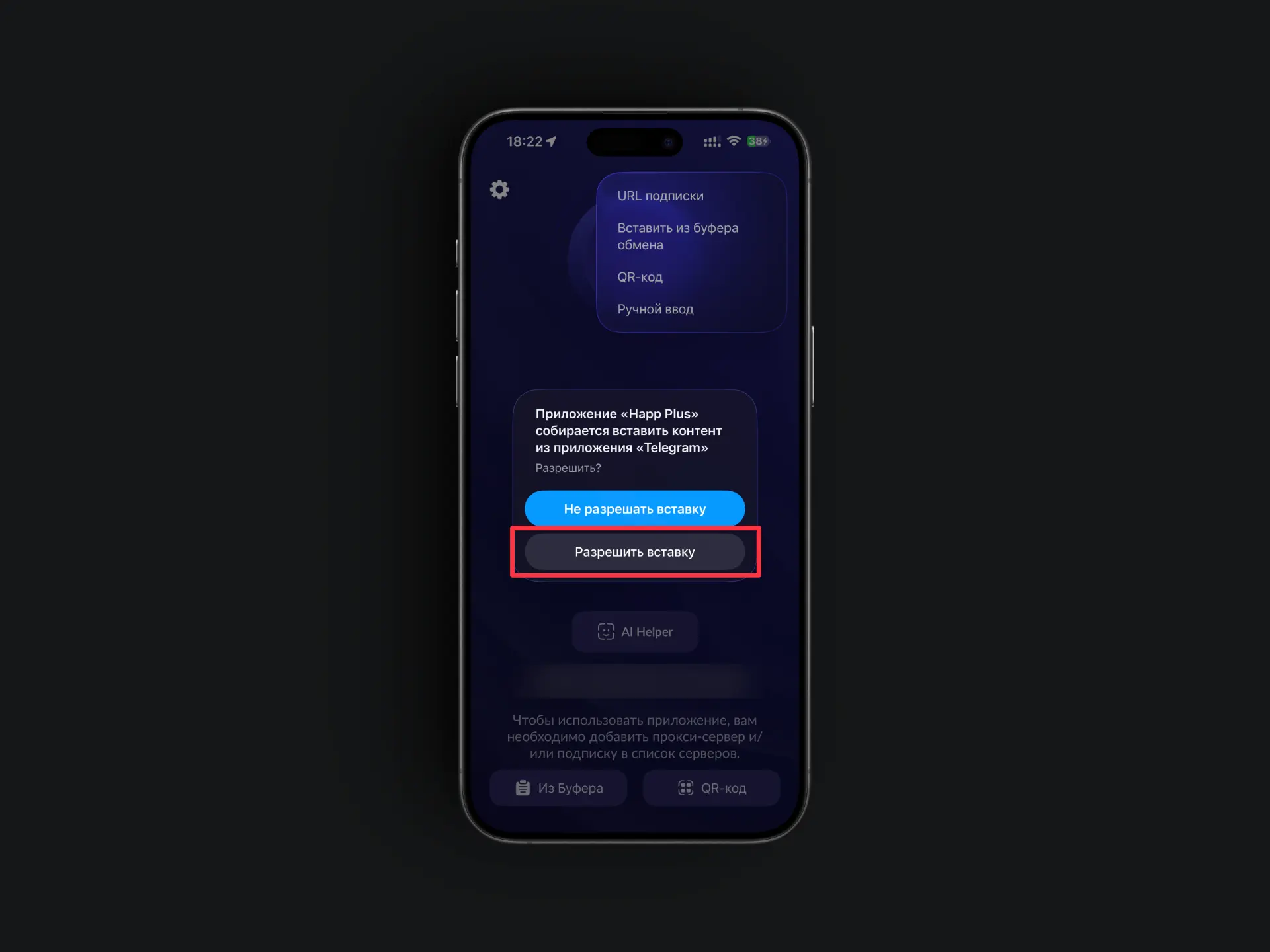
Result: your profile with a list of servers has appeared in the app.
Step 4. Choose a server
-
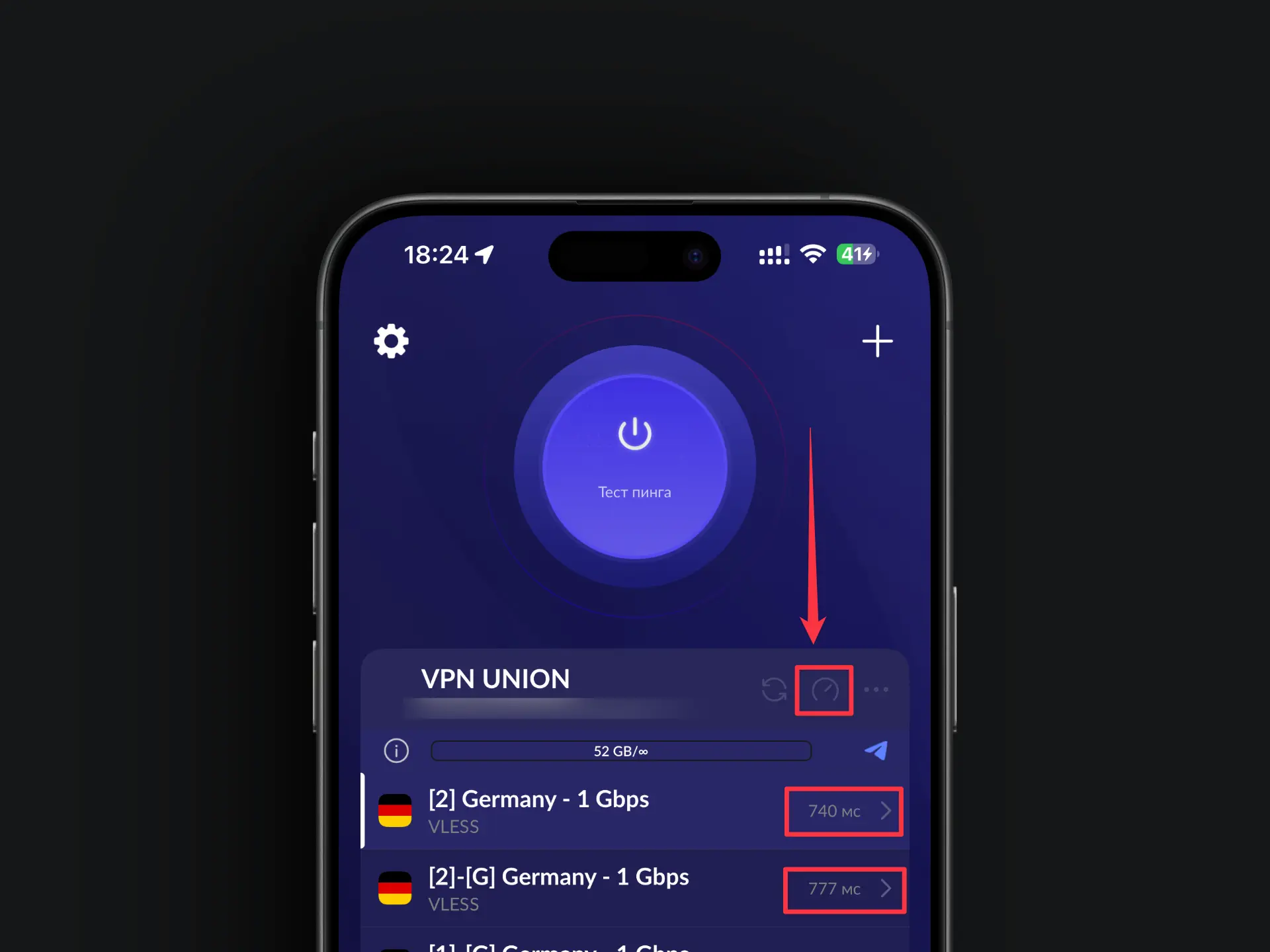
Tap "Test latency" (or "Ping")
-
Pick the server with the lowest number — the lower the ping, the faster the VPN.
Step 5. Connect
-
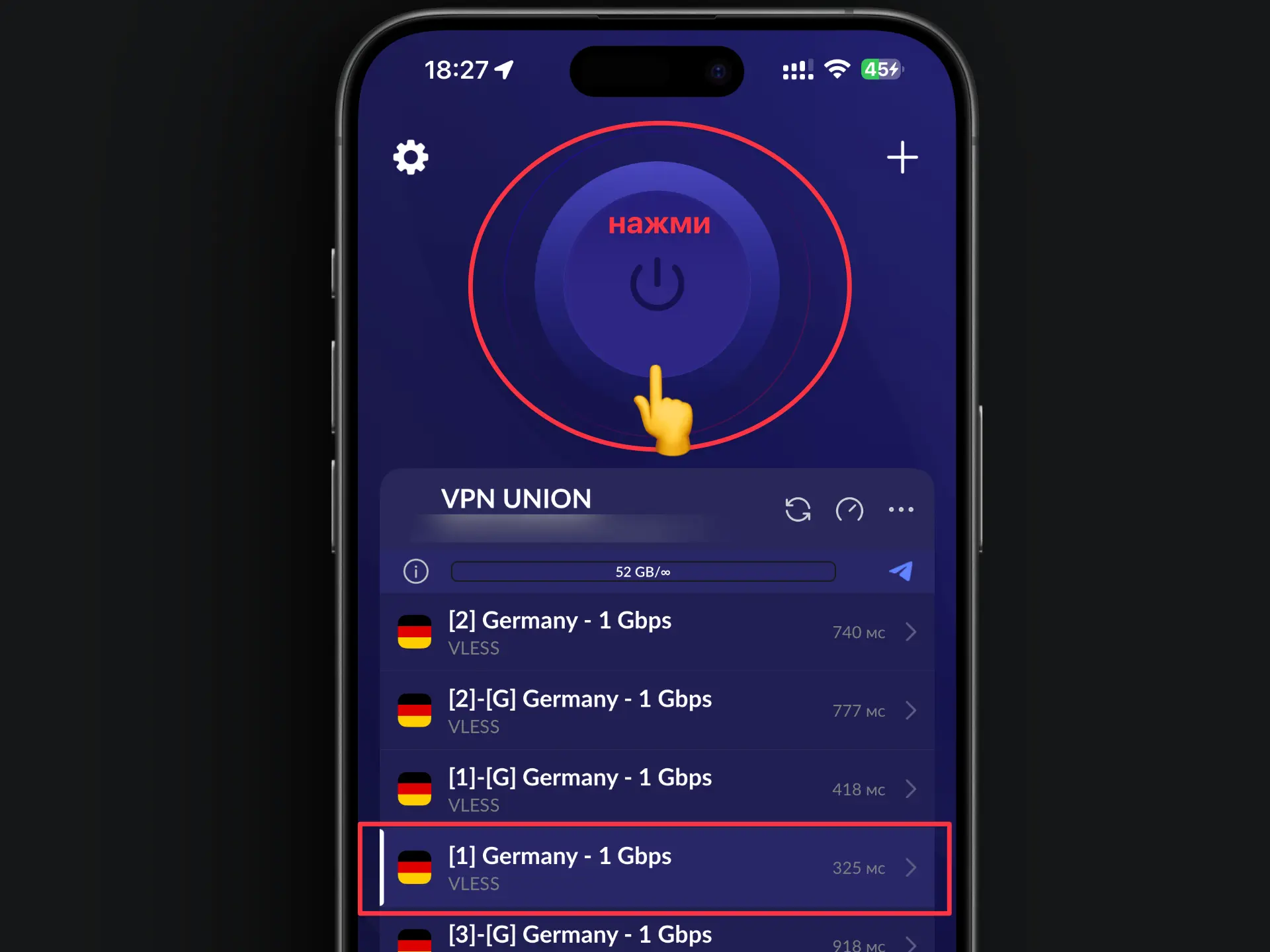
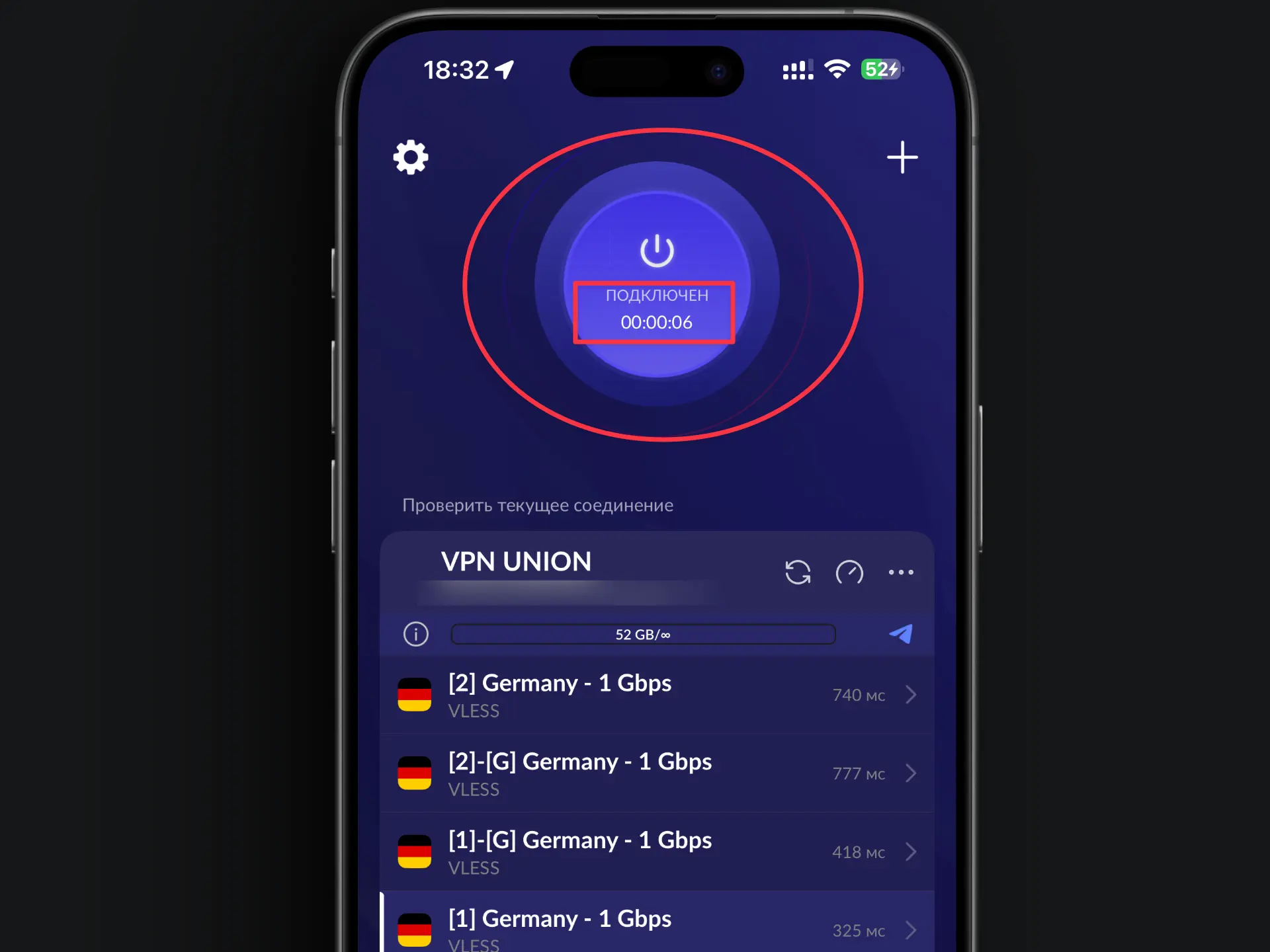
Tap the connect button
-
Tap "Allow" and confirm with Face ID/Touch ID — iOS asks for this once, on the first connection
-
A VPN icon will appear at the top of the screen
The VPN icon in the status bar means you're connected and your traffic is protected.
Disconnecting the VPN
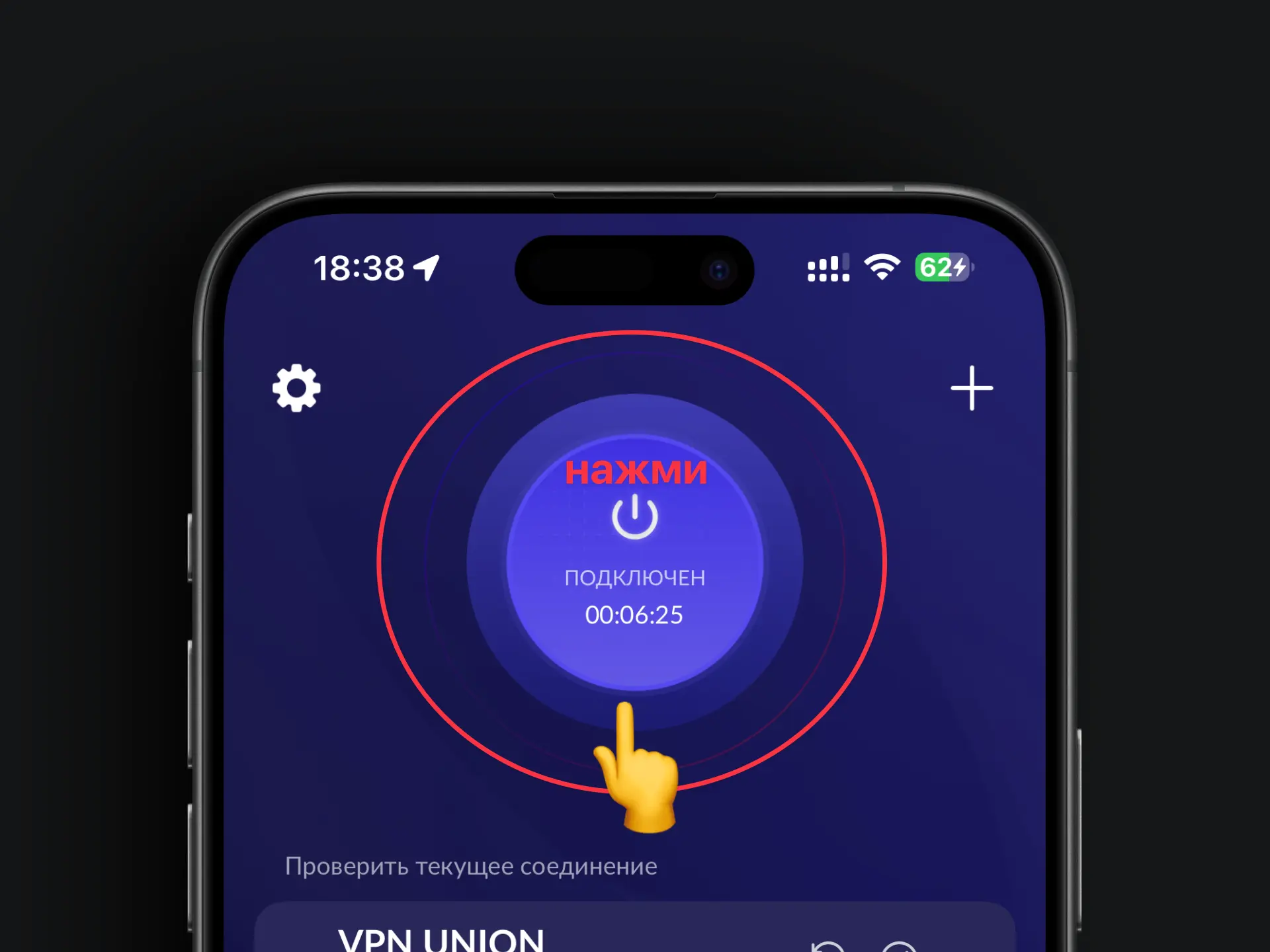
- Open the Happ app
- Tap "Disconnect"
Need help?
Something's not working, or you still have questions — message us on Telegram. We'll help any time, day or night.