FlClashX for Linux
Works on Linux, macOS, Windows, Android
Download the app
FlClashX is a free app. The release page has builds for different distros: .AppImage (works almost everywhere), .deb (Debian/Ubuntu), and .rpm (Fedora/RHEL). For Arch Linux there's a flclashx-bin package in the AUR.
Important: only download it from the official GitHub source!
Step 1. Install the app
Pick the option for your distro:
- AppImage (universal option): download
FlClashX-linux-amd64.AppImage, make it executable and run it:chmod +x FlClashX-linux-amd64.AppImage
./FlClashX-linux-amd64.AppImage - Debian/Ubuntu: download
FlClashX-linux-amd64.deband install it:sudo dpkg -i FlClashX-linux-amd64.deb - Fedora/RHEL: download
FlClashX-linux-amd64.rpmand install it:sudo rpm -i FlClashX-linux-amd64.rpm - Arch Linux: install the
flclashx-binpackage from the AUR with your favorite AUR helper, e.g.yay -S flclashx-bin.
Result: the FlClashX app launches and shows up in your app list/tray.
Step 2. Copy your activation link
The activation link is your personal subscription. Get it from our Telegram bot:
- Open the Telegram bot
- Tap 📲 Main menu
- Choose 📖 Profile
- Tap "Activation link:" — it will be copied automatically
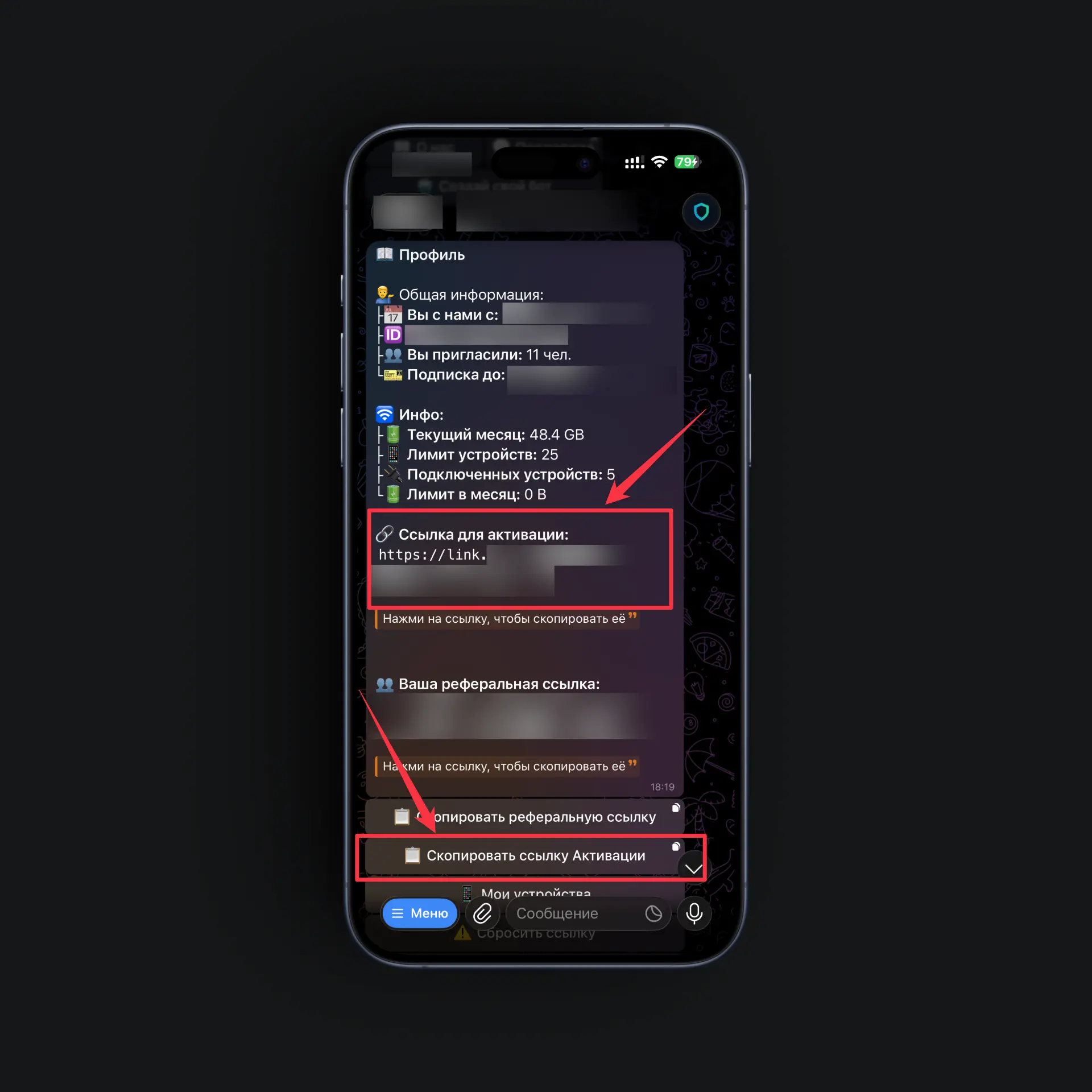
Result: the link is on your clipboard — we'll hand it to the app in the next step.
Step 3. Add the subscription
The FlClashX interface on Linux looks the same — there's no difference in the steps.
-
Open the FlClashX app
-
Click the "+" button (add profile)
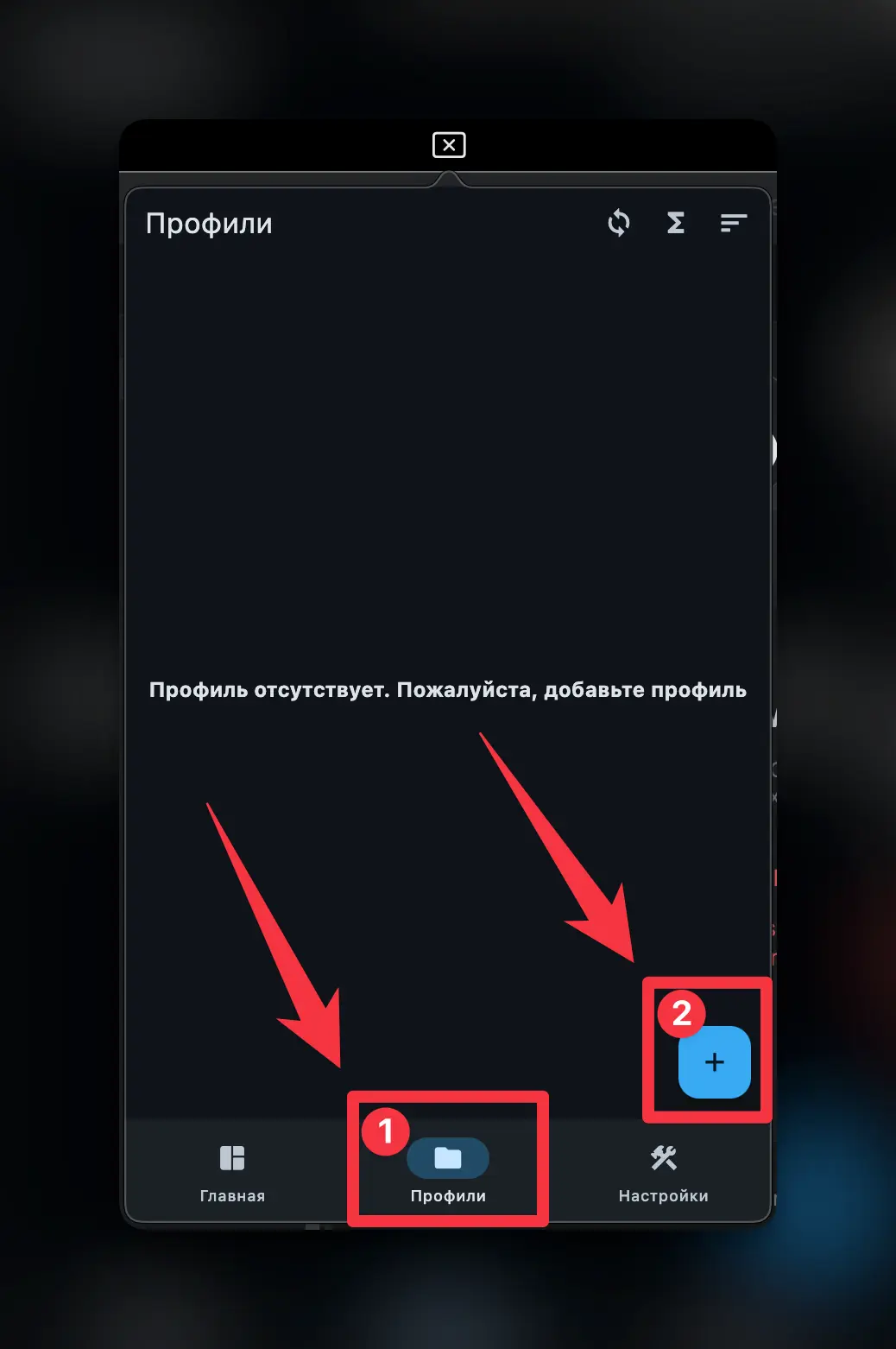
-
Choose Load profile from URL
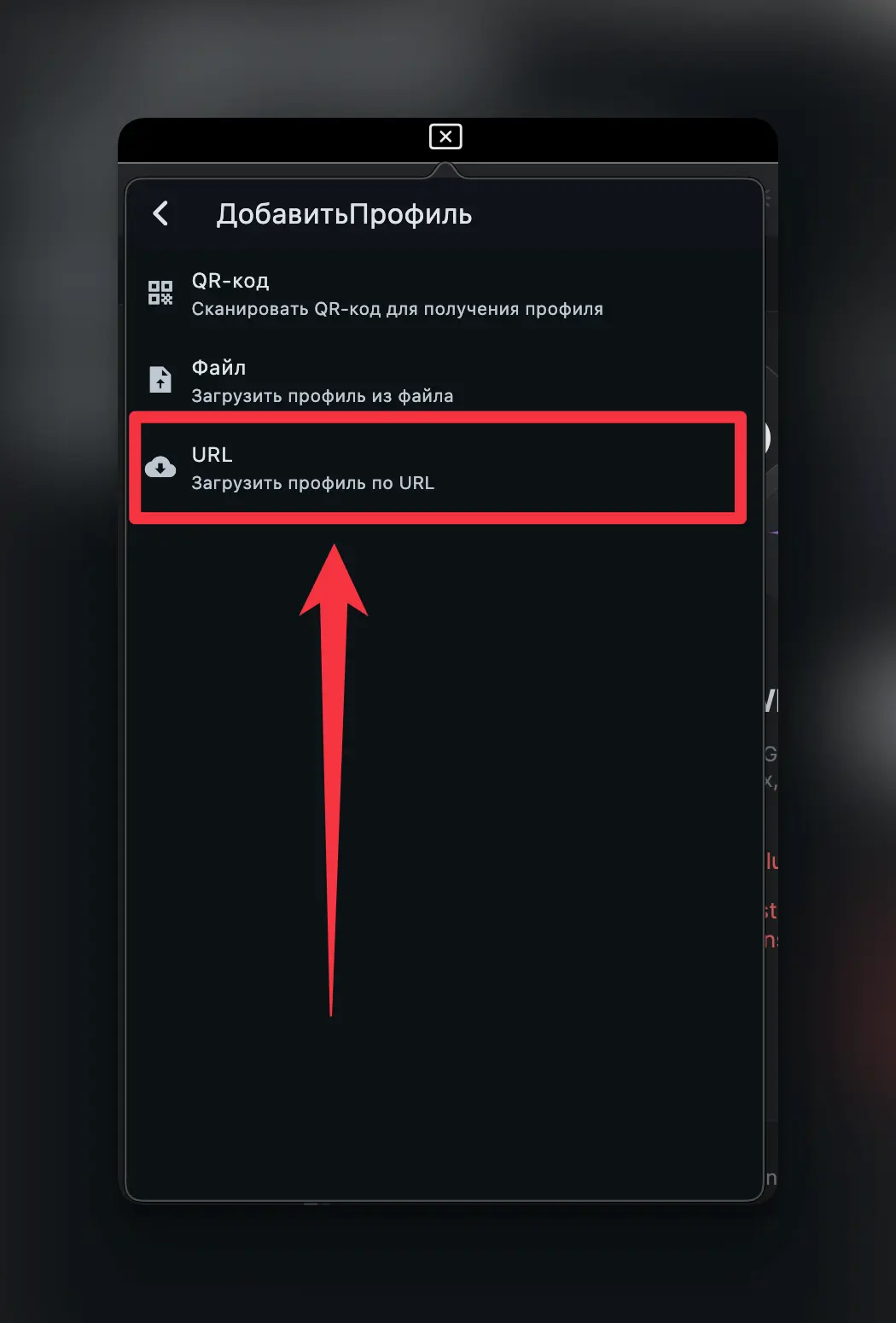
-
Paste the link you copied in Step 2 (
Ctrl+V) and click "Submit"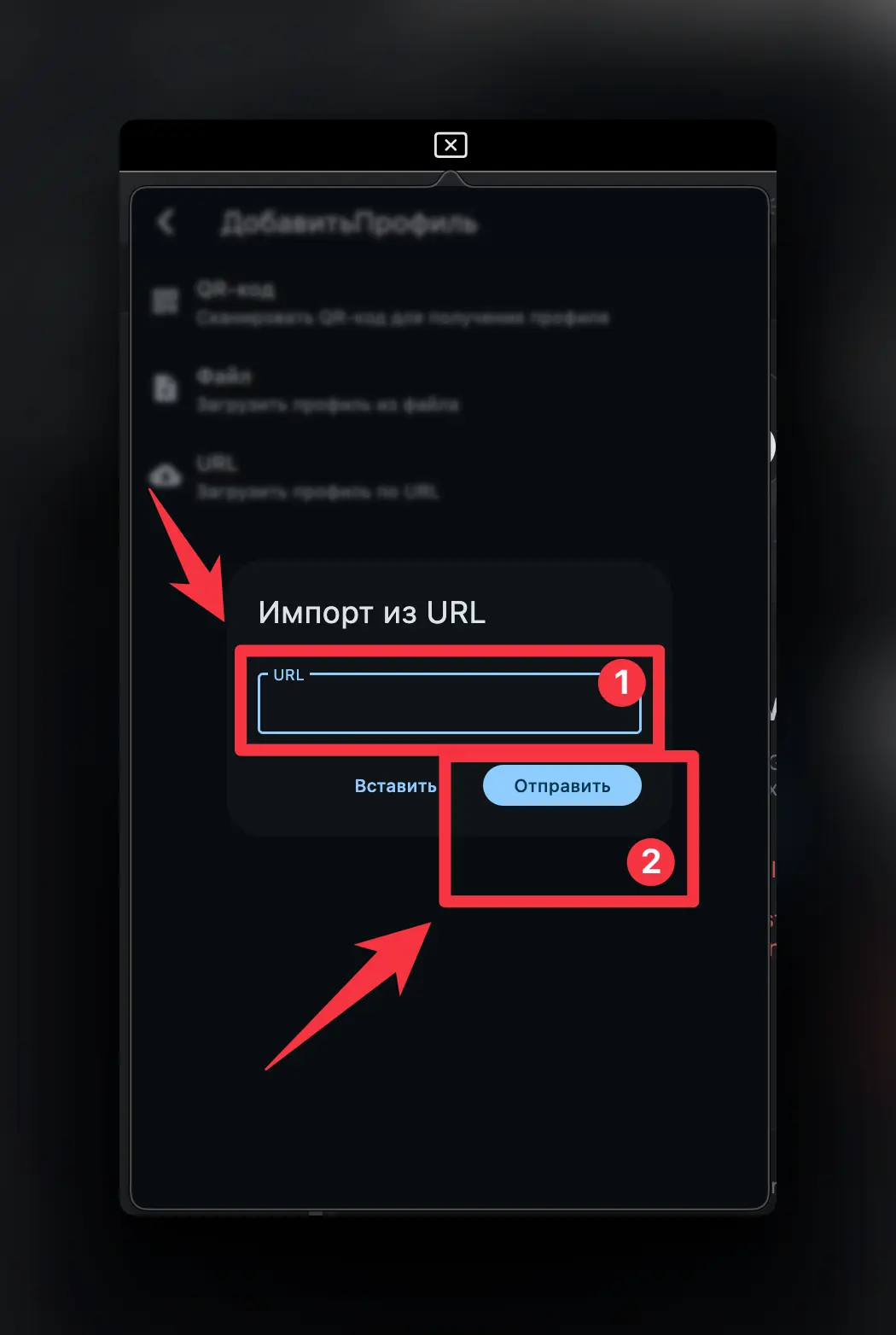
Result: your profile with a list of servers has appeared in the app.
Step 4. Choose a server
-
Click "Test latency"
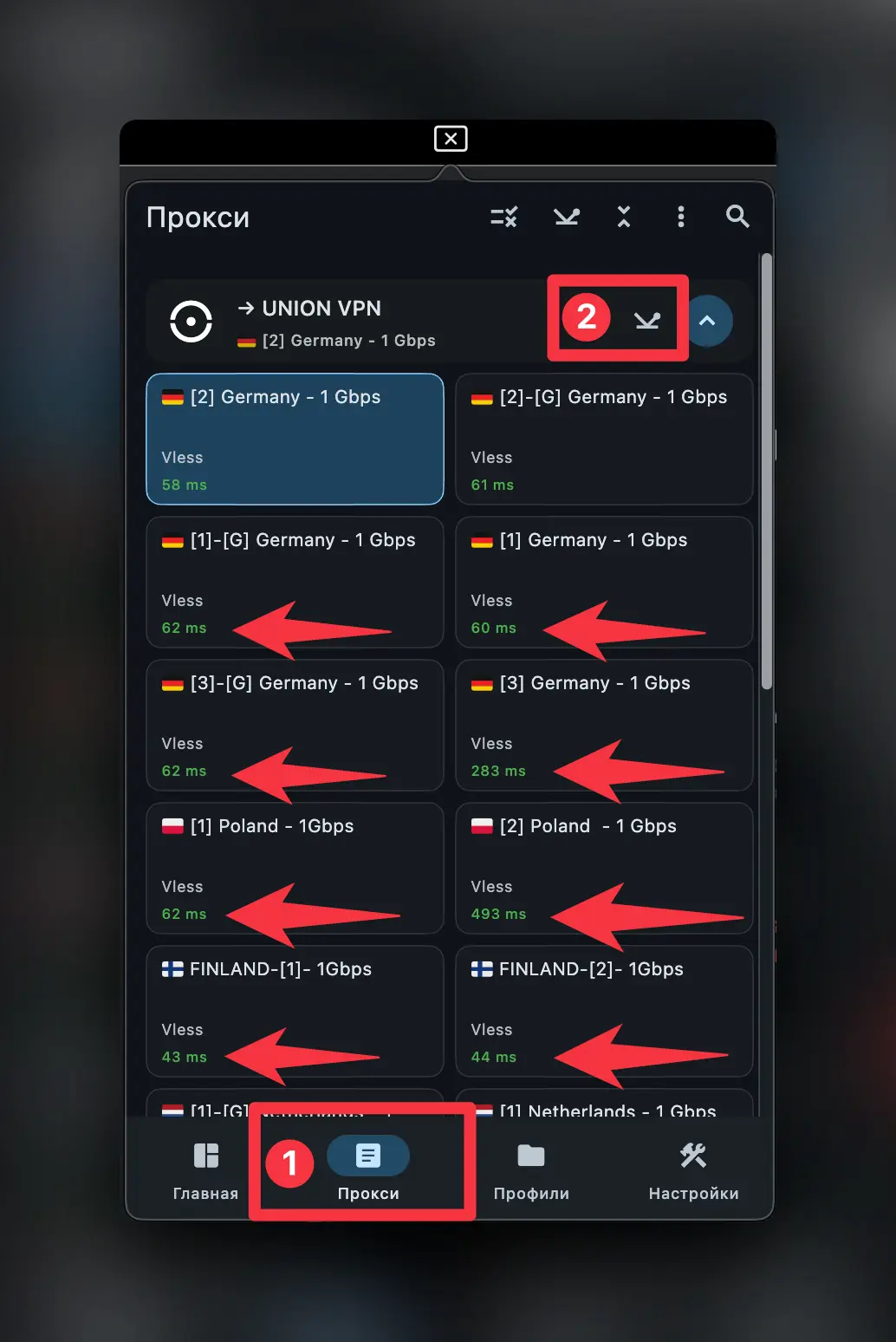
-
Pick the server with the lowest number — the lower the ping, the faster the VPN.
Step 5. Connect
Click the connect button
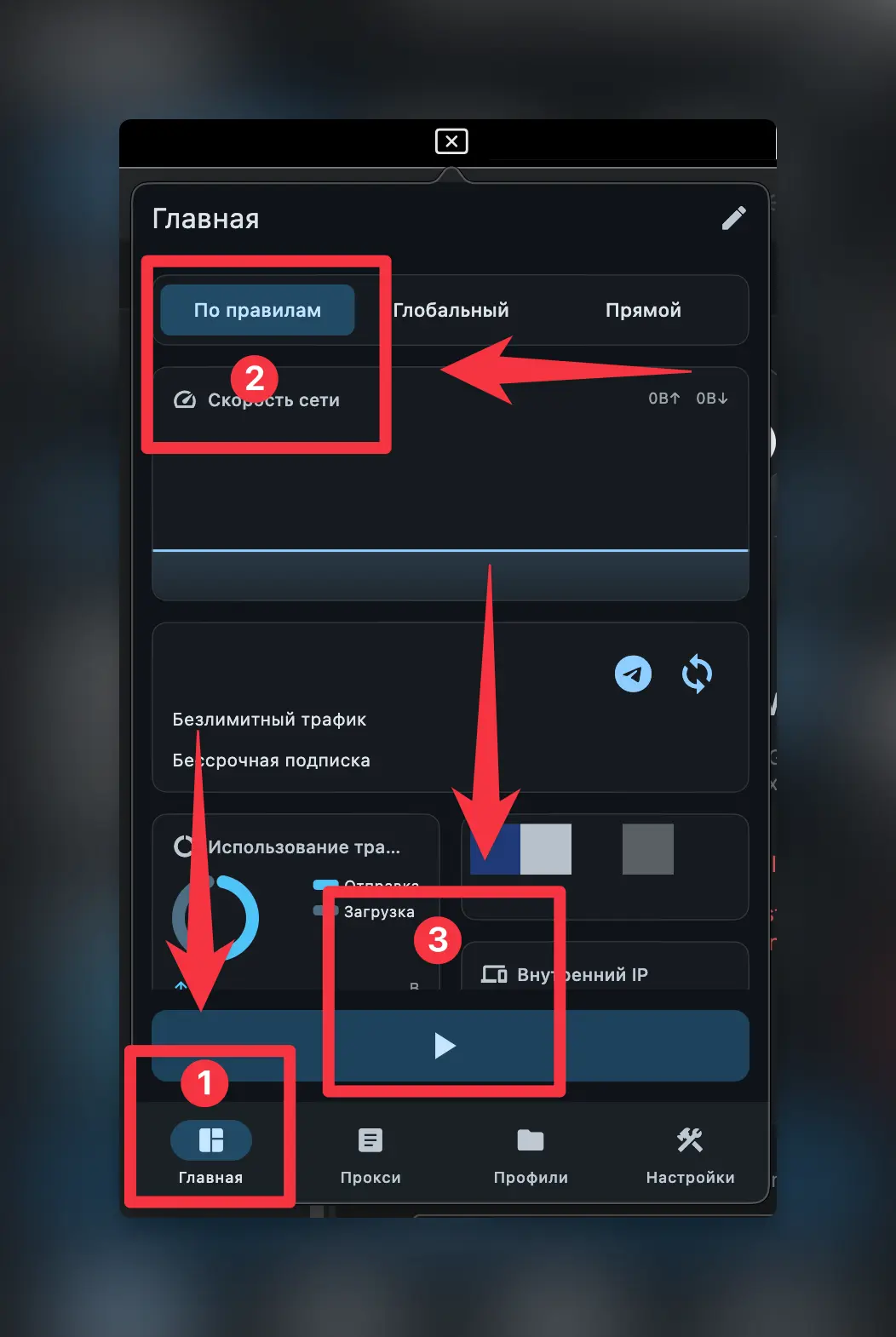
VPN is on — your traffic is protected.
Disconnecting the VPN
- Open the FlClashX app
- Click "Disconnect"
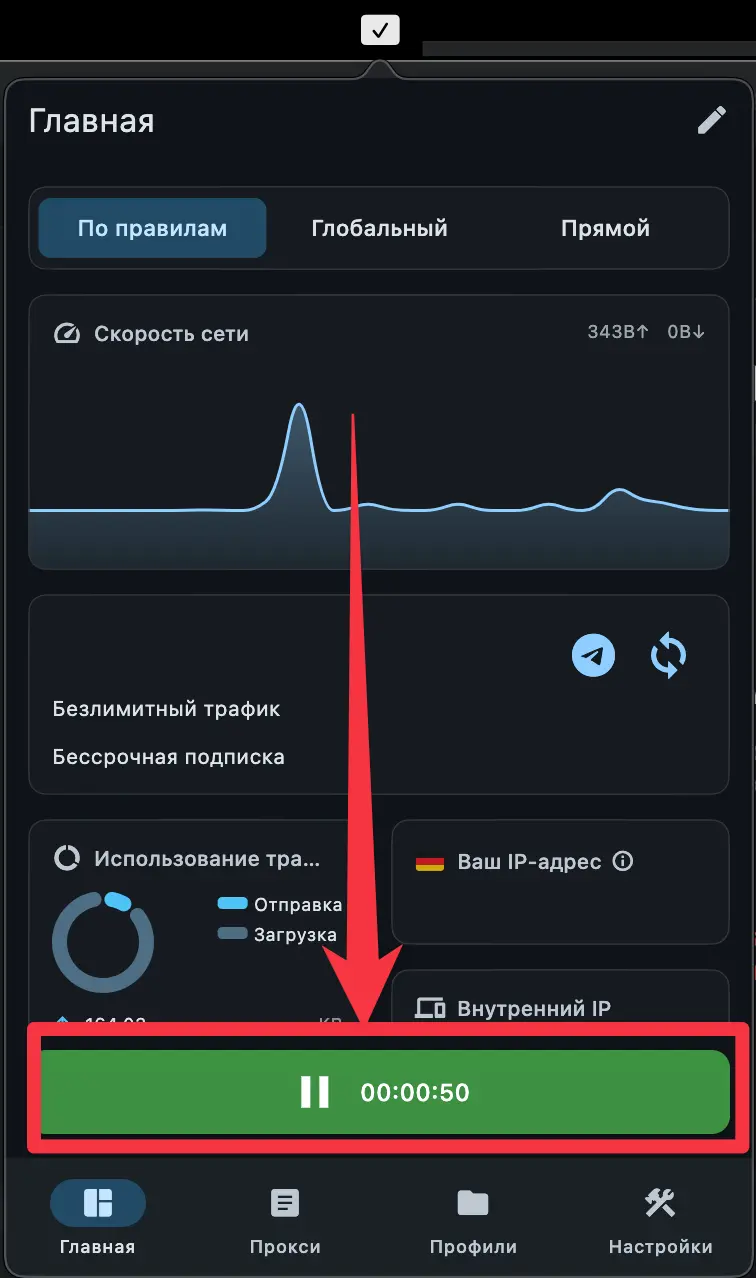
Need help?
Something's not working, or you still have questions — message us on Telegram. We'll help any time, day or night.