FlClashX for macOS
Works on macOS, Windows, Linux, Android
Download the app
FlClashX is a free app. To install it on macOS you need the .dmg file.
Important: only download it from the official GitHub source!
Step 1. Install the app
-
Follow the button above
-
Download the file for your processor:
- ARM (M1/M2/M3/M4/M5) or Intel
Click → "About This Mac". If the "Chip" line shows Apple M1–M5 — you need the ARM file, otherwise pick Intel.
-
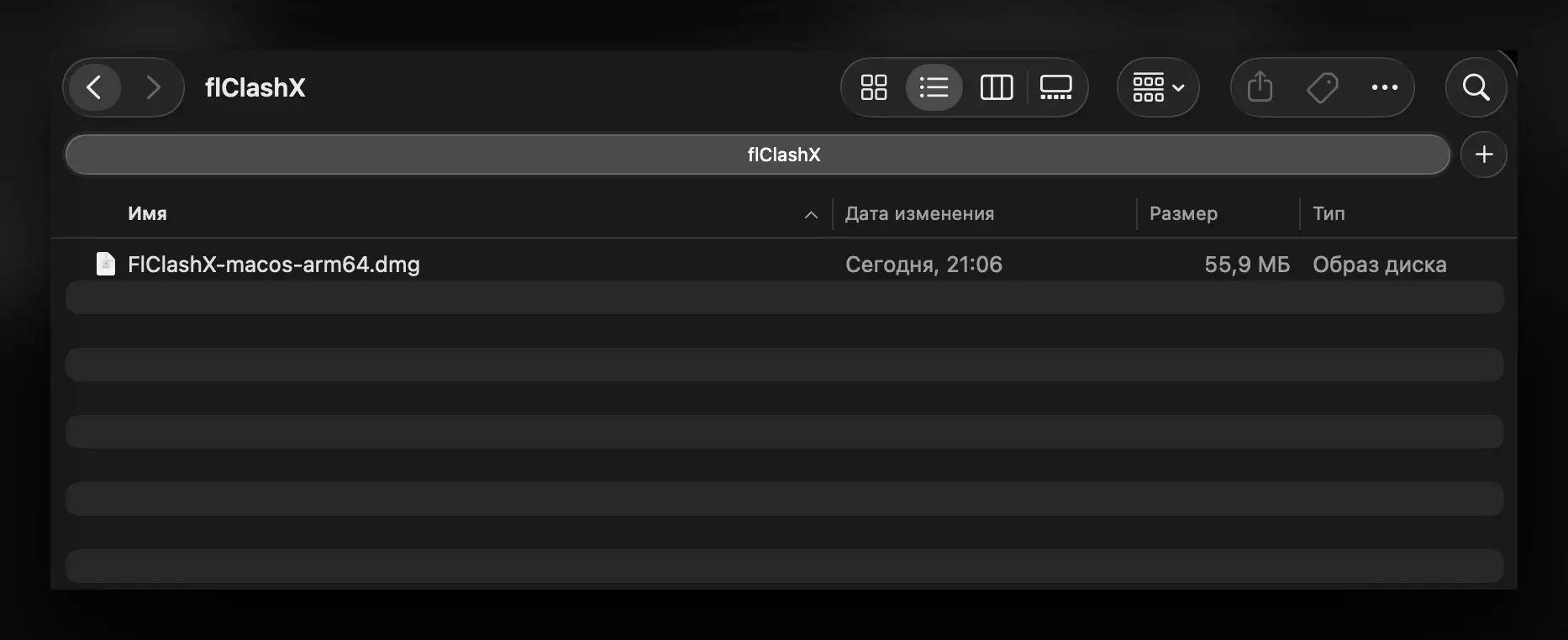
Open the downloaded
.dmgand drag FlClashX into the Applications folder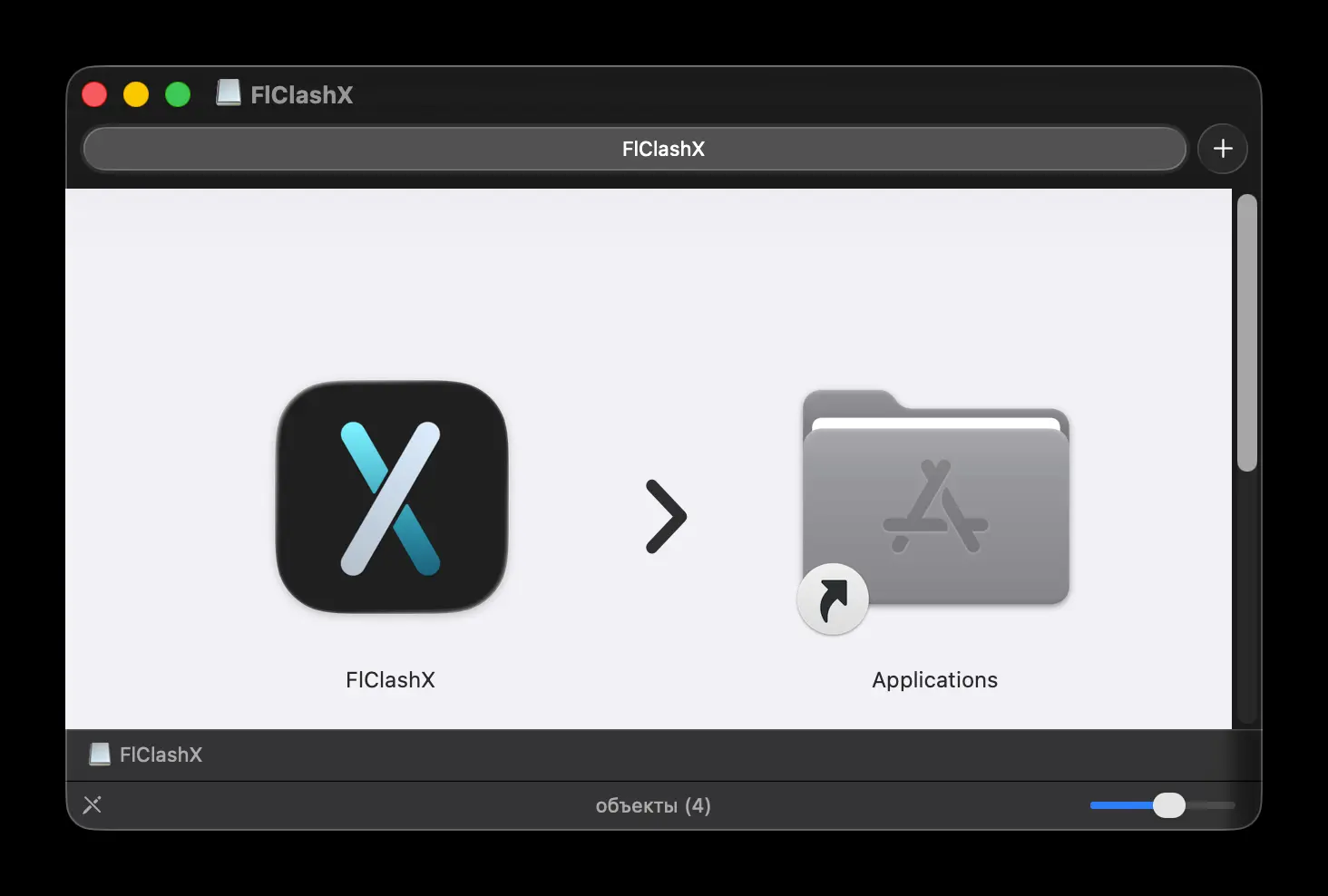
-
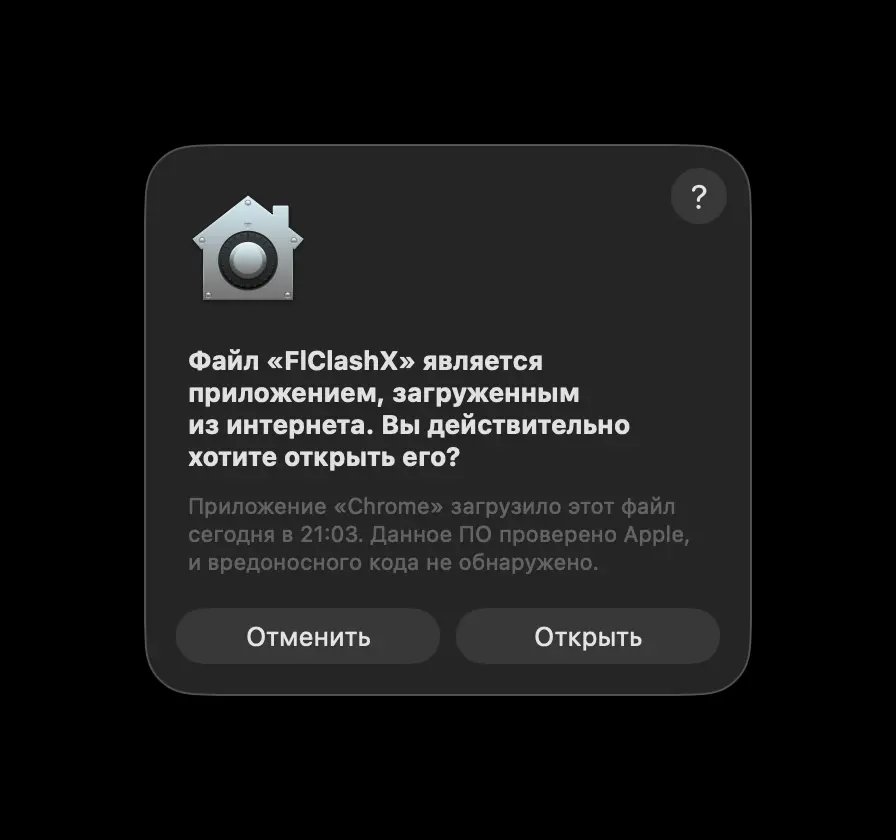
Open the app (you'll see a warning — that's normal):
- Click "Open"
- Enter your macOS account password (not your iCloud one)
- An "X" icon will appear in the menu bar (top right corner)
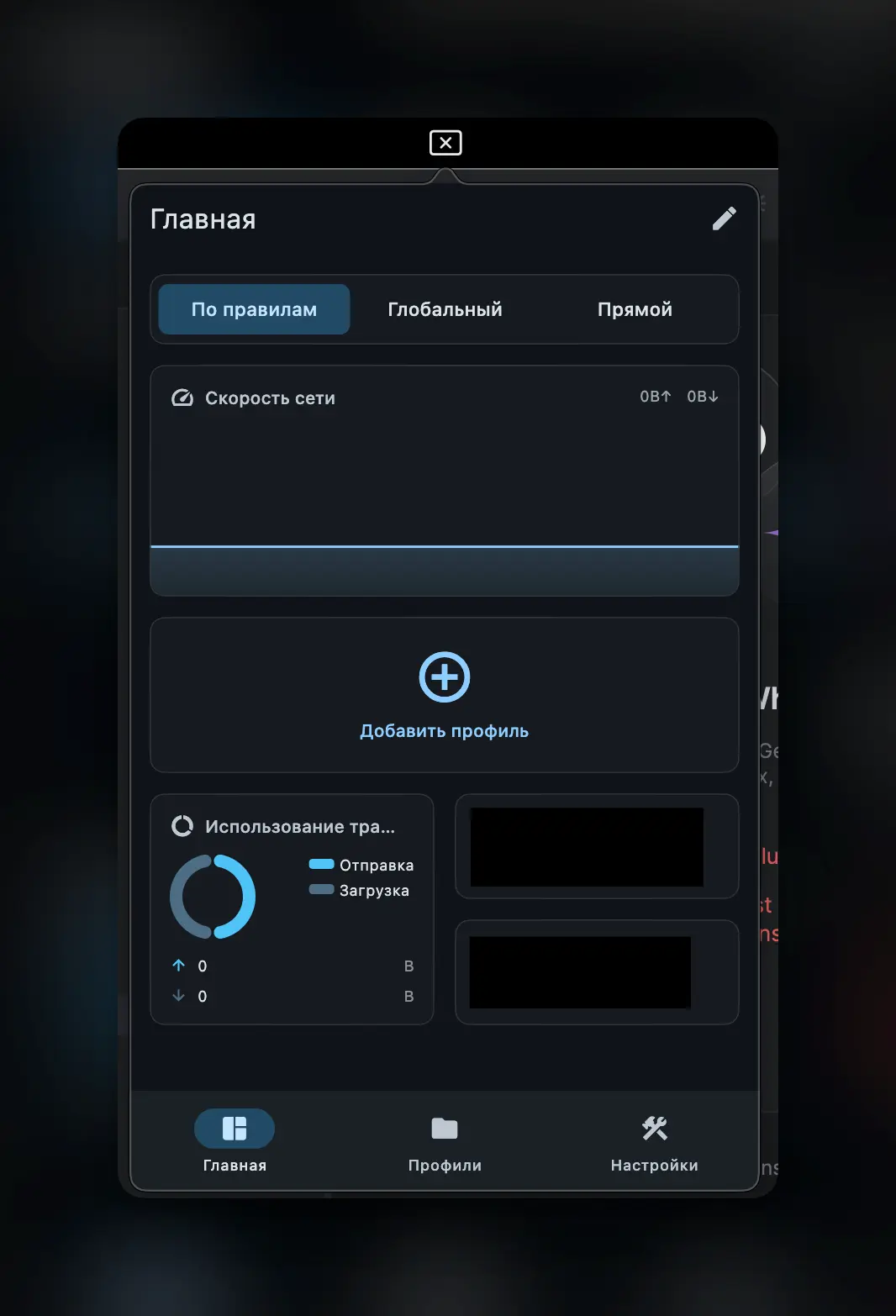
Result: the app is installed, the "X" icon is visible in the menu bar.
Step 2. Copy your activation link
The activation link is your personal subscription. Get it from our Telegram bot:
- Open the Telegram bot
- Tap 📲 Main menu
- Choose 📖 Profile
- Tap "Activation link:" — it will be copied automatically
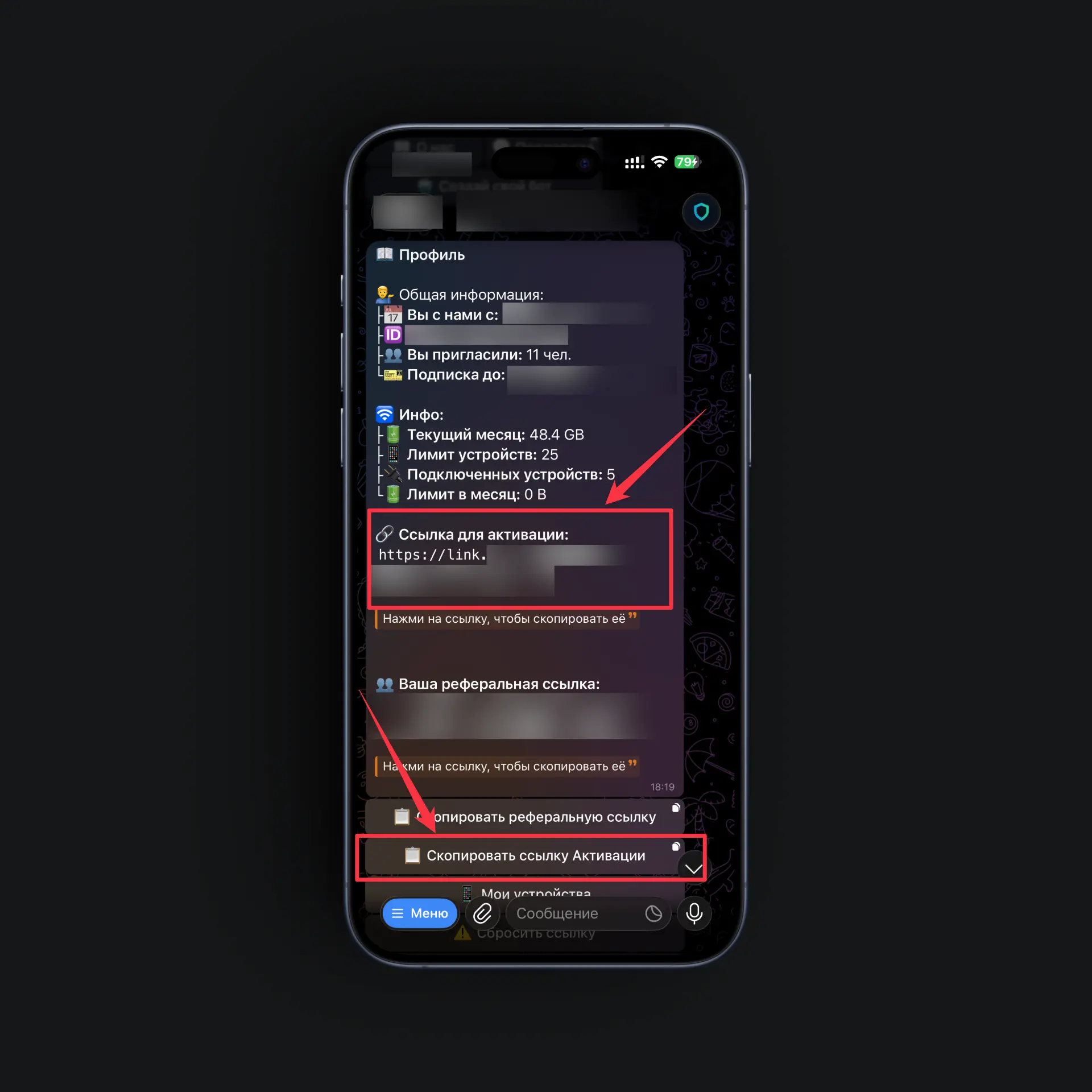
Result: the link is on your clipboard — we'll hand it to the app in the next step.
Step 3. Add the subscription
-
Open the FlClashX app
-
Click the "+" button (add profile)
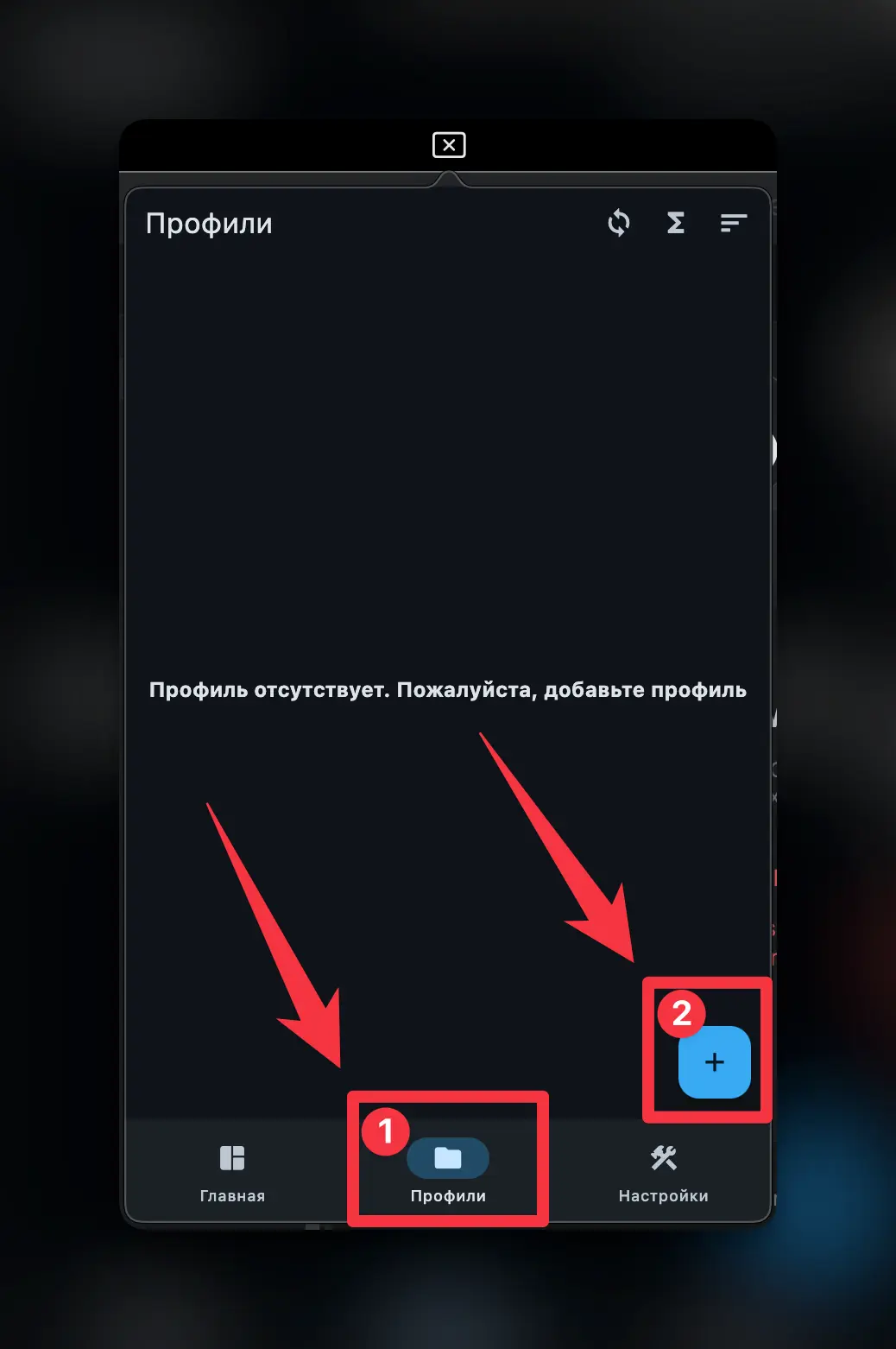
-
Choose Load profile from URL
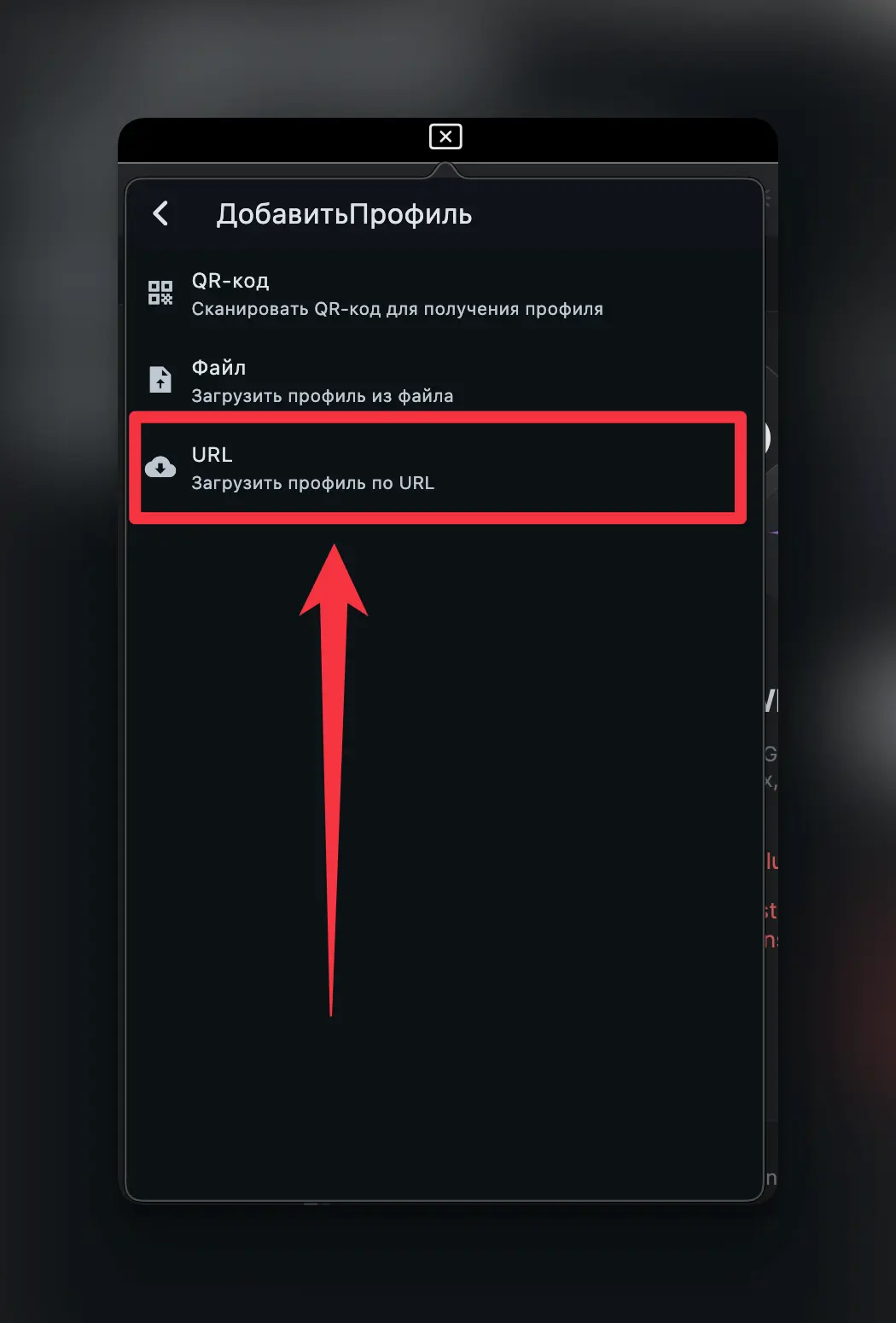
-
Paste the link you copied in Step 2 (
Cmd+V) and click "Submit"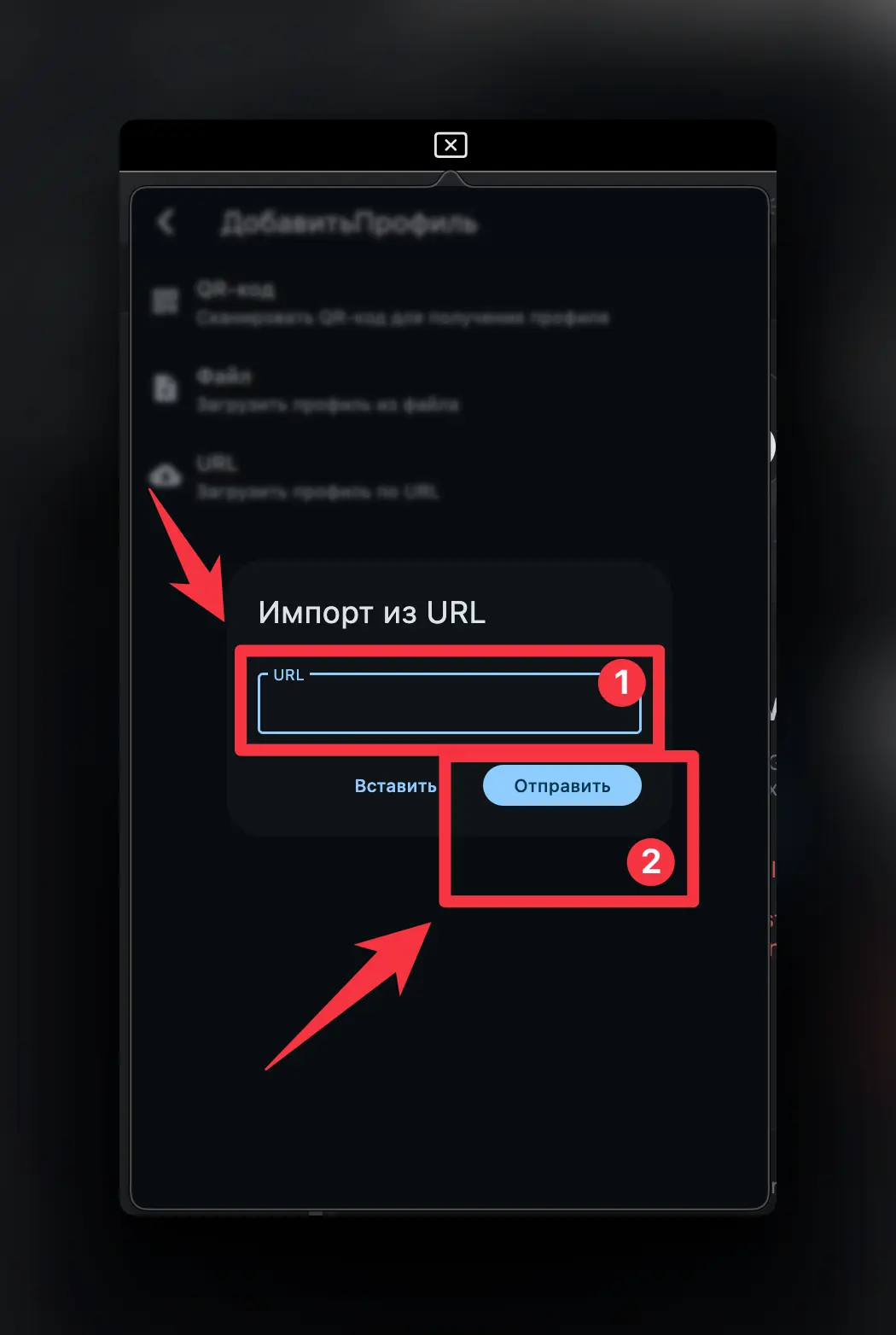
Result: your profile with a list of servers has appeared in the app.
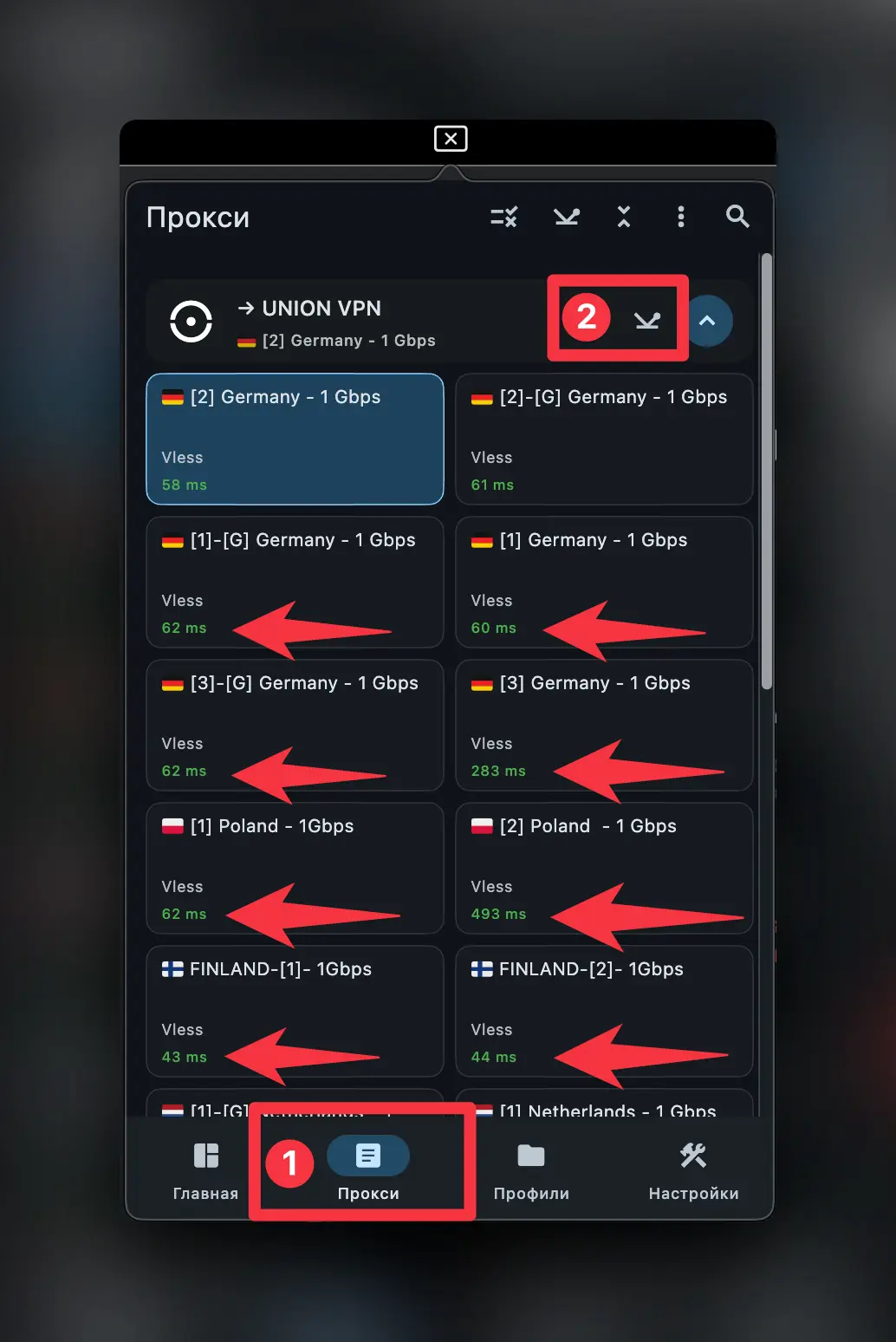
Step 4. Choose a server
-
Click "Test latency"
-
Pick the server with the lowest number — the lower the ping, the faster the VPN.
Step 5. Connect
Click the connect button
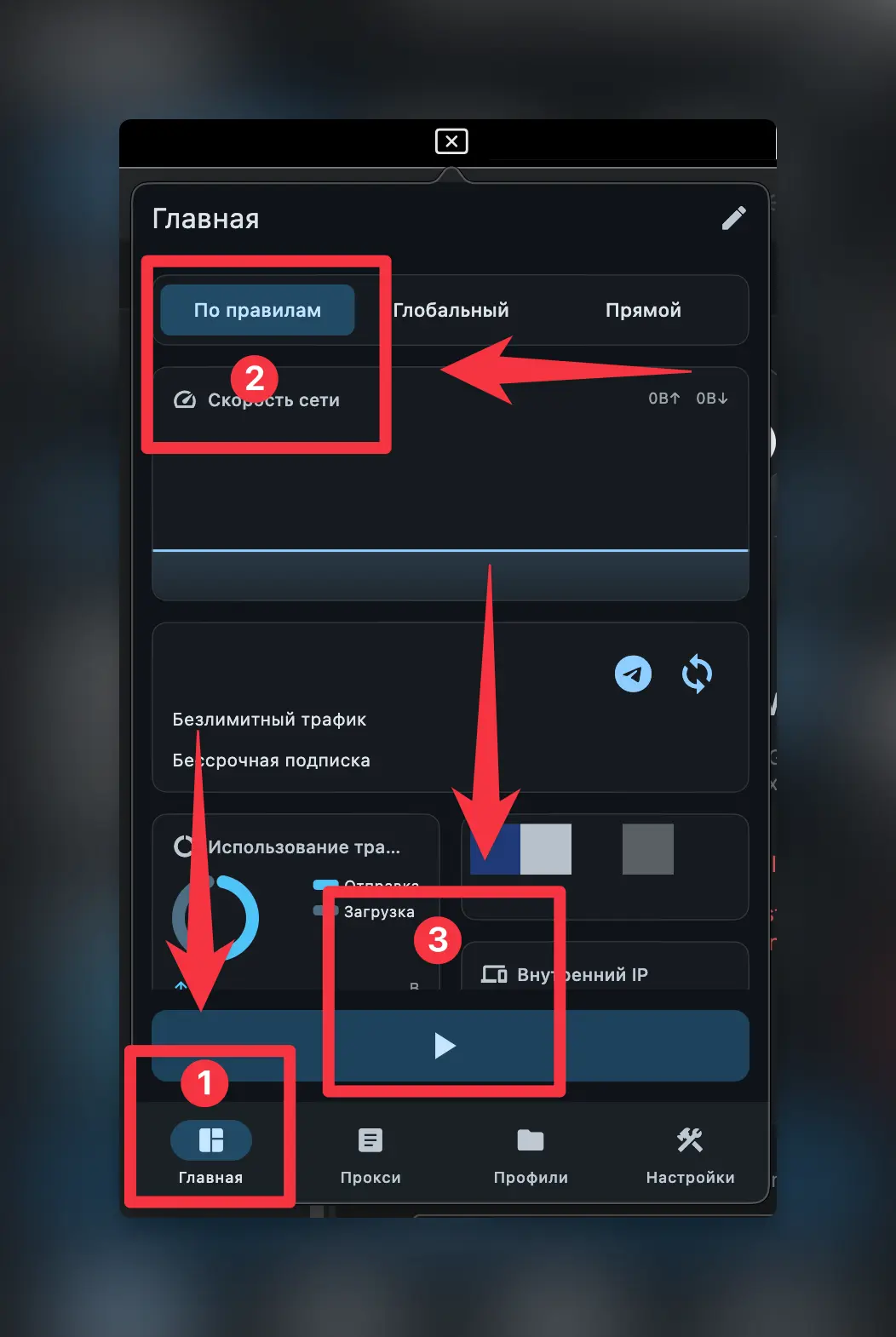
VPN is on — your traffic is protected.
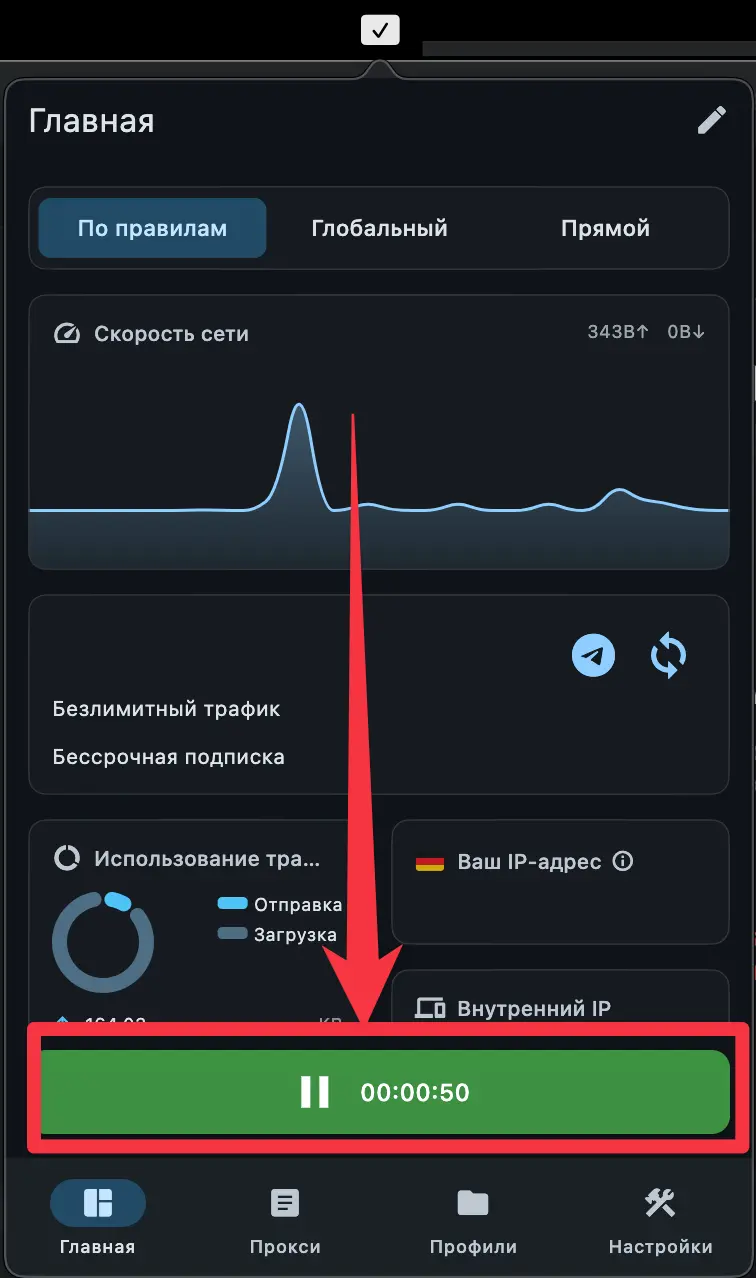
Disconnecting the VPN
- Open the FlClashX app
- Click "Disconnect"
Need help?
Something's not working, or you still have questions — message us on Telegram. We'll help any time, day or night.